That iPhone Unavailable message can stop your day fast. You cannot call, access tickets, check work email, or pull up the photos you need. The good news is that there are safe ways to fix iPhone unavailable screen issues. The right choice depends on whether you know the passcode, whether your iPhone is backed up, and whether a damaged screen caused the problem in the first place.
The one thing not to do is keep guessing. Every incorrect passcode attempt can extend the lockout timer or move the device to a state that requires a full erase. Take a breath, stop entering codes, and use the option that gives you the best chance of getting your iPhone working again.
Why Your iPhone Says Unavailable
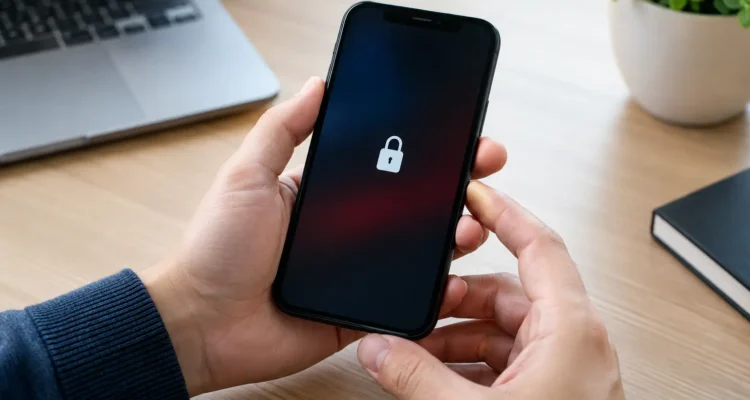
Your iPhone is protecting your personal information. After several incorrect passcode attempts, it temporarily blocks more attempts. You may see a message such as “iPhone Unavailable, try again in 15 minutes” or “Security Lockout.” The wording varies by iOS version, but the purpose is the same: prevent someone from repeatedly guessing your passcode.
This can happen after a child enters random numbers, a phone presses against the inside of a pocket or bag, or a cracked display starts registering phantom touches. It also happens when someone simply forgets a recently changed passcode.
If the screen shows a countdown, wait for the timer to finish and enter the passcode only if you are certain it is correct. Restarting the phone does not remove the unavailable message. Repeated attempts with uncertain codes can turn a short wait into a reset situation.
How to Fix iPhone Unavailable Screen Messages
There are three legitimate routes forward: wait and use the correct passcode, erase the iPhone directly from the lock screen or Find My, or restore it with a computer. None of these methods can safely bypass Apple’s security. If the phone is permanently unavailable and you do not know the passcode, erasing the device is normally required.
Wait for the timer if you know the passcode
When a countdown is visible, this is your least disruptive option. Leave the iPhone charged and avoid touching the keypad until the timer ends. Then enter the passcode carefully, one time.
If the passcode is not coming back to you, do not use the remaining attempts as a guessing game. A backup plan is better than losing more time – and potentially your current data – to repeated incorrect entries.
Erase the iPhone from the lock screen
On many newer iPhones running iOS 15.2 or later, an Erase iPhone or Forgot Passcode? option appears in the lower corner after enough failed attempts. This option is useful when the phone has an internet connection and you know the Apple Account password, previously called an Apple ID password.
Follow the on-screen prompts to erase and reset the iPhone. Once it restarts, you can set it up again and restore your information from an iCloud backup if one exists. You will still need the Apple Account used on the phone because Activation Lock remains in place after an erase.
This is convenient, but it does erase data stored only on the device. If you are unsure whether your photos, messages, or app data are backed up, pause before proceeding.
Erase it remotely with Find My
If the unavailable iPhone does not show an erase option on its display, you may be able to erase it using Find My from another Apple device or a web browser. Sign in with the same Apple Account, select the locked iPhone, and choose the erase option.
The command will complete when the iPhone connects to the internet. Afterward, set it up with the same Apple Account and restore from a backup if available. This is a solid option when the iPhone’s buttons or touchscreen are difficult to use but the device is still online.
Restore the iPhone with a computer
A computer restore is the usual solution when the phone has no internet connection, Find My is unavailable, or the lock screen does not offer an erase option. On a Mac, use Finder. On a Windows PC, use the Apple Devices app or iTunes, depending on your setup.
First, connect the iPhone to the computer with a reliable cable. Put the phone into recovery mode, then select Restore when the computer recognizes it. Restoring downloads and installs the current iOS version, erases the device, and removes the unavailable screen.
For iPhone 8, iPhone SE second generation and newer, and Face ID models, quickly press Volume Up, quickly press Volume Down, then hold the Side button until the recovery-mode screen appears. For iPhone 7 models, hold the Side button and Volume Down together. For iPhone 6s, the original iPhone SE, and earlier models, hold the Home button and Side or Top button together.
The download can take time. If the iPhone exits recovery mode before it finishes, repeat the recovery-mode steps and try again. Once the restore is complete, the setup screen will ask for the Apple Account credentials previously used on the device.
Will Resetting an Unavailable iPhone Delete Your Data?
Usually, yes. If you cannot enter the correct passcode, a reset is designed to erase the iPhone. That is not a repair-shop limitation or a setting you can turn off. iPhones encrypt their information to protect owners against unauthorized access.
Whether your data comes back after the reset depends on your backup. During setup, check for an iCloud backup or a previous computer backup. Photos may also reappear if iCloud Photos was enabled, even if there was no full device backup.
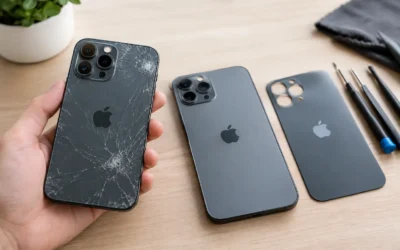
There is one important exception worth checking first: a damaged display. If you know the correct passcode but the screen is cracked, flickering, or producing ghost touches, screen repair may let you unlock the device without erasing it. Do not keep tapping a failing screen. Power it down if possible and have the display assessed before more accidental entries pile up.
When a Repair Shop Can Help
An unavailable message is sometimes only the visible part of the problem. A phone with water damage, a failing screen, bad buttons, a worn charging port, or software trouble may be hard to place into recovery mode or may not connect reliably to a computer.
A technician can diagnose whether the issue is strictly passcode-related or whether hardware is getting in the way. For example, a broken display can be replaced so you can enter a passcode you already know. Charging and data-connection issues can also be addressed before attempting a computer restore.
Be cautious of anyone who promises to “bypass” the passcode while keeping all your data. For a properly secured iPhone, that is not a realistic or trustworthy promise. A legitimate repair service should explain the erase process, ask you to provide the Apple Account credentials after the reset, and be clear about the limits of data recovery.
Before You Reset: Check These Details
Before erasing your phone, confirm that you know the Apple Account email or phone number and its password. If you use two-factor authentication, make sure you can receive the verification code on another trusted device or phone number. Without those credentials, Activation Lock can prevent setup even after a successful restore.
It also helps to check whether your important information lives elsewhere. Look at another Apple device for synced photos, contacts, notes, and files. Check your cloud storage and your messaging apps, since some services keep their own backups while others do not.
If the unavailable screen appeared after a drop, water exposure, or a screen that started tapping by itself, tell the technician. That detail changes the best repair order. Fixing the hardware first may prevent the same problem from happening again after your iPhone is restored.
Common Questions About an Unavailable iPhone
Can I fix an unavailable iPhone without a computer?
Yes, if the lock screen offers Erase iPhone or Forgot Passcode?, or if you can erase it through Find My. You will still need your Apple Account credentials and a backup if you want to restore your data afterward.
Does turning the iPhone off remove the unavailable screen?
No. Restarting or powering off the phone does not clear failed passcode attempts. If there is a timer, it may continue once the phone turns back on.
What if my computer does not recognize the iPhone?
Try another certified cable, USB port, or computer. If it still will not connect, there may be a charging-port, cable, battery, or software issue that needs a diagnostic before restoration can work.
A locked iPhone is frustrating, but it does not mean you need to replace it or make a rushed choice. If hardware damage is part of the problem, ProPhonez can inspect the device, explain the practical options, and help you get back to a phone you can rely on.