Your iPad is at 3%, the cable keeps slipping out, and the battery icon refuses to change. That is when iPad charging port repair stops feeling like a minor inconvenience and starts feeling urgent. Whether you use your tablet for school, work calls, streaming, travel, or keeping up with family, a device that will not charge can throw off your whole day.
The good news is that a charging issue does not automatically mean you need to replace your iPad. Sometimes the problem is a worn cable or packed-in pocket lint. Other times, the port, battery, charging circuitry, or liquid damage needs professional attention. A proper diagnosis can save you from buying parts you do not need and get you back to using your iPad with confidence.
Start With the Simple Charging Checks
Before assuming the port has failed, test the accessories around it. Try a different wall outlet, a known-good charging cable, and a compatible power adapter. A damaged cable can charge intermittently, get unusually warm, or only work when bent at a certain angle. If another cable charges the iPad normally, the port may be fine.
Check the connector on both ends of the cable for bent pins, fraying, discoloration, or debris. For USB-C iPads, make sure the connector seats fully and does not feel loose. Older Lightning models should also hold the cable securely. A cable that falls out easily can point to lint inside the port, but it can also signal physical wear.
If the iPad has been completely drained, leave it connected to a reliable charger for at least 20 to 30 minutes before deciding it will not power on. A deeply discharged battery may need time before the screen shows the charging symbol. If it still does not respond, do not keep swapping random chargers for hours. That can hide the actual issue and delay a useful repair.
Signs You May Need iPad Charging Port Repair
Charging ports take more abuse than most people realize. They collect dust from bags and pockets, experience repeated pulling from cables, and can be affected by drops or moisture. The issue may develop slowly, with the charger working only at a certain angle, or it may happen suddenly after a spill or impact.
You may need an inspection if your iPad only charges when the cable is held in place, disconnects with a small movement, charges very slowly with reliable accessories, or does not recognize any cable at all. A port that looks visibly bent, corroded, or blocked should not be forced. Pushing a connector into a damaged port can harm the cable and make the repair more involved.
There is also a difference between a charging port problem and a battery problem. If the iPad recognizes the charger but loses power quickly, shuts down unexpectedly, or stays stuck at the same percentage, the battery may be the larger concern. If the iPad charges normally from a wireless charging accessory, that can offer another clue on compatible models, though most iPads rely on their physical port for charging.
A technician should test the port, cable connection, battery behavior, and internal charging components before recommending work. This matters because modern iPads are compact devices with delicate internal connections. Replacing a port without confirming the fault is not a cost-effective solution.
Why Cleaning the Port Can Help – and When It Cannot
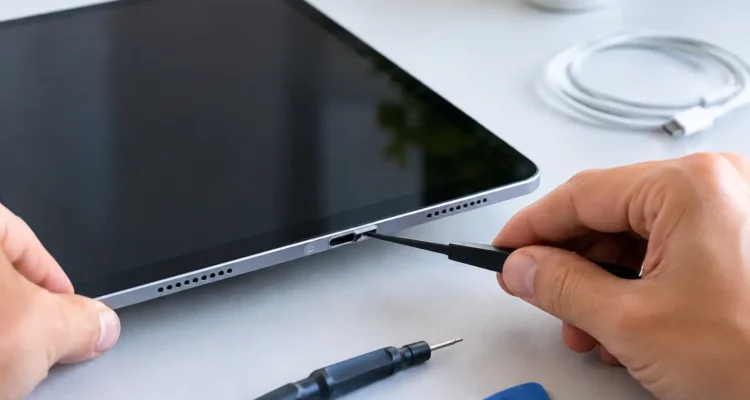
Lint is one of the most common reasons a cable no longer clicks into place. It can become tightly packed at the bottom of the port, preventing the connector from reaching its proper depth. From the outside, the port may look clean even when debris is causing the problem.
You can gently inspect the port under good light. Do not use metal pins, paper clips, needles, or liquid cleaners. Metal tools can scratch contacts or create a short, while liquids can push residue deeper inside. Compressed air can also be risky if used aggressively, especially if moisture is present.
If you are not sure what you are seeing, bring the iPad in for an on-the-spot diagnostic. Safe cleaning may be all that is needed. But if the contacts are damaged, the port is loose, or corrosion is present, cleaning alone will not restore a stable connection. The goal is not simply to make the cable fit. It is to make sure the iPad charges safely and consistently.
Water Damage Changes the Repair Plan
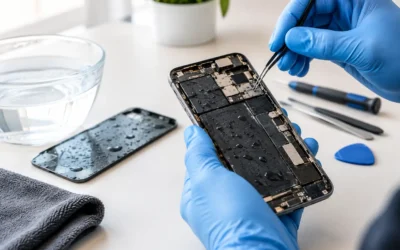
A charging issue after a spill, rain exposure, or high humidity deserves extra caution. Your iPad may still turn on and appear normal, but moisture around the charging port can cause corrosion over time. Plugging in power before the device is assessed can worsen a short circuit.
If liquid exposure is possible, disconnect the charger, turn the iPad off if you can, and avoid rice or heat-based drying methods. Rice does not remove corrosion, and high heat can damage screens, batteries, and adhesives. Let a repair technician inspect the device for moisture and internal damage instead.
Water-damage treatment may involve more than port repair. Depending on what the diagnostic finds, the iPad could need cleaning, charging circuit work, a battery replacement, or board-level repair. It depends on how much liquid entered the device, how long it remained inside, and whether power was connected afterward. Early assessment usually gives the device its best chance.
What Professional Repair Usually Involves
A reliable repair starts with confirming the cause, not guessing. A technician checks charging behavior with appropriate equipment, looks for debris or port damage, and evaluates whether the battery and internal circuitry are doing their job. If the port is the problem, the repair process varies by iPad model.
Some iPads use charging-port assemblies that can be replaced directly, while others require more detailed disassembly and specialized soldering work. Screen removal, internal connectors, and tightly fitted components all need careful handling. That is why a repair that sounds small can require experienced work.
At ProPhonez, the focus is on explaining what is wrong before moving forward. You can receive a clear assessment of whether cleaning, port repair, battery service, or additional work makes the most sense for your device and budget. Quality part options are discussed when applicable, and repairs are tested before the iPad is returned.
Turnaround time depends on the iPad model, the availability of the needed part, and whether the issue is limited to the port. A straightforward repair may be completed quickly, while liquid damage or motherboard-level charging faults can take longer because they require deeper testing. A fast answer is helpful, but a correct repair is what keeps you from coming back with the same issue next week.
Protect Your Data Before a Repair
A charging-port repair should not require erasing your iPad, but any electronic repair carries some risk, especially when the device has liquid or board damage. If the iPad still turns on, back up important photos, school files, notes, and app data before bringing it in. If it cannot power on, tell the technician that data recovery is a priority.
You may also need your passcode to test charging and confirm the device works correctly after service. Never share account passwords you do not need to share. If Find My or an activation lock is enabled, be prepared to handle it when required for service, then restore your preferred security settings afterward.
Avoid Making the Problem Worse
Do not force a cable into the port, keep wiggling it for a connection, or charge through obvious heat, burning smells, or discoloration. Stop using the charger if the iPad becomes unusually hot or if the connector feels loose enough to spark concern. These are reasons for prompt professional assessment, not a DIY experiment.
Using a good-quality cable and keeping the port free of pocket debris can reduce future problems. Give the connector a straight pull when unplugging, rather than yanking the cable from the side. Small habits can extend the life of both the port and your charging accessories.
If your iPad is no longer holding a dependable charge, do not let it interrupt work, classes, or the routines you rely on. Bring it in for a diagnosis, get a clear repair recommendation, and make the choice that gets your device working again without replacing it before you have to.