Troubleshooting Touchscreen Malfunctions

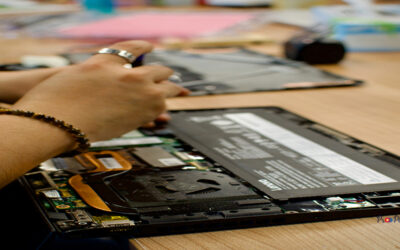
A malfunctioning touchscreen can disrupt your entire iPhone experience. Start by cleaning the screen with a soft, lint-free cloth to remove any debris or oils. If the issue persists, restart your device to clear temporary glitches. For more stubborn problems, check for software updates, as Apple often releases patches for touchscreen responsiveness. If your screen remains unresponsive, consider resetting your device’s settings (Settings > General > Transfer or Reset iPhone > Reset). Persistent issues may indicate hardware failure, in which case professional repair is recommended.
Fixing Battery Drain Issues

Rapid battery drain can be frustrating. Begin by checking battery usage in Settings to identify power-hungry apps. Disable background app refresh and lower screen brightness. Activate Low Power Mode to extend battery life. Ensure your iOS is up to date, as updates often optimize battery performance. If the problem continues, recalibrate your battery by letting it drain completely and then charging it to 100%. For aging batteries, a replacement may be necessary.
Connectivity Concerns: Wi-Fi and Bluetooth Solutions

Connectivity issues can hinder productivity and enjoyment. For Wi-Fi problems, toggle Airplane Mode on and off, restart your router, and forget and reconnect to the network. For Bluetooth, ensure your device is discoverable and within range, and restart both devices. Resetting network settings (Settings > General > Transfer or Reset iPhone > Reset > Reset Network Settings) often resolves persistent issues. If problems continue, check for iOS updates or consult Apple Support.
Persistent Glitches and How to Resolve Them

Frequent glitches, such as freezing or unexpected app closures, can often be resolved by restarting your iPhone. Clear unused apps running in the background and ensure your software is current. If glitches persist, perform a soft reset or restore your device to factory settings after backing up your data. Regularly updating apps and iOS can prevent many common bugs.
Improving Device Performance and Speed
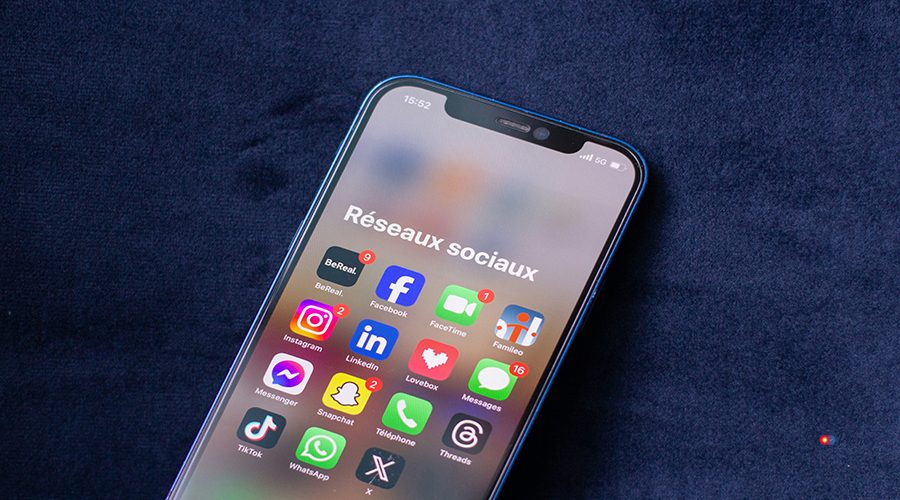
To boost your iPhone’s performance, start by clearing unnecessary files and deleting unused apps. Disable visual effects (Settings > Accessibility > Motion > Reduce Motion) and limit background processes. Regularly restart your device and keep your software updated. If your device is still slow, consider a factory reset to eliminate lingering issues.
Frequent Software Glitches Affecting Users

Common software glitches include app crashes, lag, and unresponsive features. These are often resolved by updating apps and iOS, clearing cache, and restarting the device. If issues persist, reinstall problematic apps or reset all settings. Regular maintenance and timely updates are key to minimizing disruptions.
Why Your Device Might Be Sluggish
A sluggish iPhone can result from overloaded storage, outdated software, or too many background processes. Free up space by deleting old files and apps, and close unused background apps. Update your iOS and apps regularly. If performance does not improve, a factory reset may be necessary.
Overheating can pose significant risks to your iPhone’s performance and longevity. Excessive heat not only accelerates battery degradation but can also lead to unexpected shutdowns or damage to internal components. To prevent overheating, avoid extended use of intensive apps in hot environments, remove bulky cases when charging, and ensure proper ventilation. If your device frequently overheats, seek professional diagnostics to rule out hardware failures.
Issues With Battery Life That Need Attention

If your battery drains quickly, check for rogue apps consuming excessive power. Disable location services for non-essential apps and reduce push notifications. Keep your device cool, as heat can degrade battery health. If your battery health (Settings > Battery > Battery Health) is below 80%, consider a replacement.
Navigating Display Malfunctions: Troubleshooting Tips

Display issues, such as flickering or dead pixels, can often be traced to software bugs or minor hardware faults. Restart your device and check for updates. If the problem persists, reset your settings or restore your device. For hardware-related issues, professional repair is advised.
Connectivity Troubles and How to Solve Them

Connectivity troubles can often be solved by toggling Airplane Mode, restarting your device, resetting network settings, or checking for any unusual sound interference. Ensure your iOS is up to date and that you are within range of your Wi-Fi or Bluetooth device. Persistent problems may require router resets or professional diagnostics.
Frequent Screen Glitches and How to Fix Them

Screen glitches, such as ghost touches or flickering, may be caused by software bugs or screen protectors. Remove any screen protector and clean the display. Restart your device and check for updates. If issues persist, reset your device or seek professional repair.
Troubleshooting Battery Drain Issues

To address battery drain, review battery usage statistics and close power-hungry apps. Lower screen brightness and disable unnecessary features like Bluetooth and location services. Enable Low Power Mode and update your iOS. If the issue remains, recalibrate or replace the battery.
Unresponsive Apps: Causes and Solutions
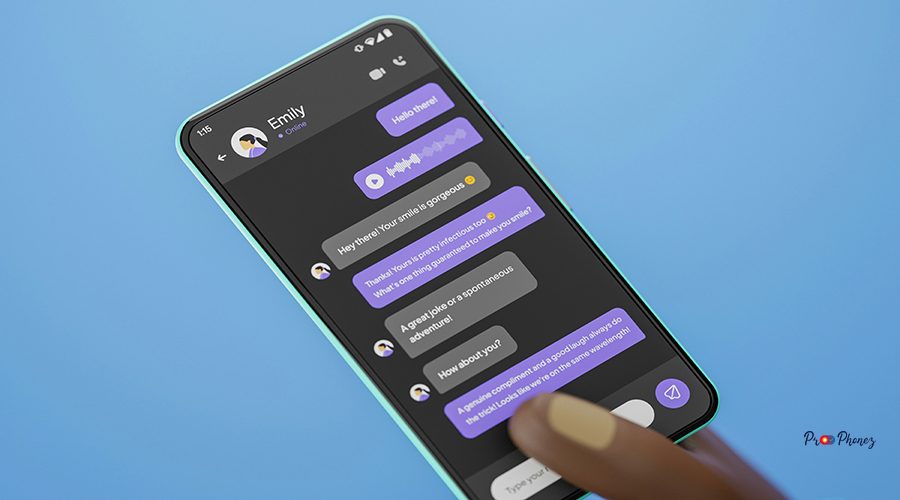
Apps may become unresponsive due to software bugs or insufficient resources. Force close the app and restart your device. Update the app and your iOS. If the problem continues, delete and reinstall the app. Persistent issues may require contacting the app developer.
When encountering audio issues, the iPhone’s microphone might be the culprit. First, check if any debris is blocking the microphone hole and clean it gently with a dry, soft brush. If audio issues persist, try recording a voice memo to test the microphone directly. Restart your device and ensure it’s running the latest iOS version. If the problem remains unsolved, consider resetting your settings or consulting a professional for further diagnostics.
Software Update Woes; Navigating Potential Pitfalls

Software updates can sometimes introduce new bugs or compatibility issues. Always back up your data before updating. If you encounter problems, try restarting your device or performing a factory reset. Stay informed about known issues with new updates and wait for patches if necessary.
Connectivity Challenges with Wi-Fi and Bluetooth

For Wi-Fi and Bluetooth challenges, restart your device and the affected hardware. Forget and reconnect to networks or devices. Update your iOS and reset network settings if needed. Persistent issues may require hardware diagnostics.
Frequent Glitches Affecting iPhone Users

Frequent glitches can be minimized by keeping your device updated, clearing cache, and restarting regularly. If problems persist, reset settings or perform a factory reset after backing up your data.
Troubleshooting Battery Draining Issues

Address battery draining by identifying and closing power-intensive apps, reducing screen brightness, and enabling Low Power Mode. Update your iOS and recalibrate your battery if needed.
Tips to Fix Unresponsive Touchscreen

For an unresponsive touchscreen, clean the display, remove any case or protector, and restart your device. Update your iOS and reset settings if necessary. Persistent issues may indicate hardware failure.
How to Resolve Wi-Fi Connection Failures
To resolve Wi-Fi failures, restart your device and router, forget and reconnect to the network, and reset network settings. Update your iOS and check for interference from other devices.
Software Update; Keeping Your iPhone Bug-Free
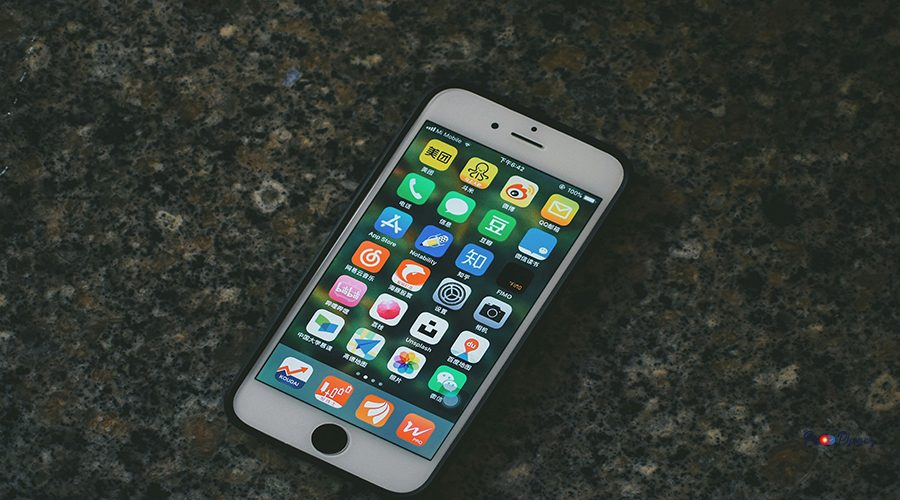
Regular software updates are essential for security and performance. Always back up your data before updating. If you encounter issues, restart your device or restore from backup.
If you’re using an iPhone, updating iOS can resolve many software-related issues and optimize overall performance. Apple’s regular updates address known bugs and vulnerabilities, making your device more secure and efficient. Additionally, taking advantage of iCloud for backups ensures that your data remains safe throughout the updating process. For those who encounter persistent issues, Apple Support offers resources and assistance tailored to iPhone users.
Whether you’re using an iPhone or another smartphone, ensuring that your device is up-to-date can prevent many common issues. iPhones, in particular, benefit from routine iOS updates that not only introduce new features but also enhance device security and performance. It’s important to back up your iPhone data before proceeding with major updates to avoid potential data loss.
The iPhone, renowned for its user-friendly interface and seamless integration with other Apple products, plays a crucial role in the mobile device market. Its consistent software updates not only enhance functionality but also bolster security against potential threats. Updating your iPhone regularly ensures that it maintains optimal performance and enjoys the latest features.
Frequent Software Glitches
Frequent software glitches can be reduced by updating your iOS and apps, clearing cache, and restarting your device regularly.
Whether you’re a seasoned iOS user or new to the platform, understanding how to optimize your iPhone’s functionality is key to a seamless experience. The iPhone offers several built-in tools and settings designed to enhance performance, such as optimizing storage, managing app activity, and using widgets effectively. By familiarizing yourself with these features, you can keep your device running smoothly and efficiently.
iPhone problems are common and can range from minor software hiccups to significant hardware failures. Troubleshooting these issues often involves restarting the device, updating the iOS, or resetting certain settings. However, if problems persist despite these efforts, it may be a sign that professional diagnosis and repair are needed, especially for hardware malfunctions.
Battery Life Concerns

If you’re concerned about battery life, monitor usage, disable unnecessary features, and keep your device cool. Replace the battery if health is significantly degraded.
Overheating can be another reason for performance issues, often leading to unexpected shutdowns or slowdowns. Ensure that your device is used in a temperature-controlled environment, and avoid exposing it to direct sunlight or heat sources. If your device frequently overheats, consider reducing processor-intensive tasks and using cooling accessories.
Connectivity Challenges

Connectivity challenges can often be resolved by restarting your device, resetting network settings, and updating your iOS.
Connectivity problems are one of the common challenges faced by many iPhone users. These problems can manifest in various ways such as intermittent Wi-Fi connection, inability to connect to Bluetooth devices, or slow internet speed. Addressing these issues often involves a series of basic troubleshooting steps like restarting the device, updating network settings, or resetting the device’s network configuration. If these problems persist, it may be essential to check for firmware updates or consult with a network specialist to identify potential underlying issues.
App Crashes: Troubleshooting Tips

If apps crash frequently, update them and your iOS, clear cache, and restart your device. Reinstall problematic apps if needed.
Display Issues and Solutions

Display issues, including sound problems, may be resolved by restarting your device, updating your iOS, or resetting settings. Persistent problems may require professional repair.
Black screens are a common display issue that can cause significant frustration for users. When encountering a black screen, ensure your device is adequately charged and try force restarting it. If the problem persists, check for hardware damage or seek professional help for potential screen replacements.
If your microphone is not functioning properly, ensure it is not obstructed or covered and that it is not muted in settings. Restart your device, update your iOS, and reset any related settings. For persistent issues, consider seeking professional repair to ensure the microphone is not damaged.
Frequent Software Glitches and Their Fixes

Common software glitches can be fixed by updating your device, clearing cache, and restarting. For persistent issues, reset settings or perform a factory reset.
Unresponsive Touchscreen: What You Can Do

If your touchscreen is unresponsive, clean the display, remove accessories, and restart your device. Update your iOS and reset settings if needed.
Battery Drain Issues: Tips for Improvement

Improve battery life by closing unused apps, lowering brightness, and enabling Low Power Mode. Update your iOS and recalibrate your battery if necessary.
Connectivity Challenges: Wi-Fi and Bluetooth Troubles

Resolve Wi-Fi and Bluetooth troubles by restarting devices, resetting network settings, and updating your iOS.
Notification Delays; Ensuring Timely Alerts

Delayed notifications can be fixed by checking notification settings, ensuring Do Not Disturb is off, and updating your iOS. Restart your device if issues persist.
Frequent Software Glitches Impacting Users

Frequent glitches can be minimized by keeping your device and apps updated, clearing cache, and restarting regularly.
Battery Life Issues and Quick Fixes

Quickly fix battery issues by closing background apps, lowering brightness, and enabling Low Power Mode. Replace the battery if health is low.
Camera Functionality: Common Hiccups and Solutions

If your camera malfunctions, restart your device, close other apps, and update your iOS. Reset settings if issues persist. For hardware problems, seek professional repair.
Unexpected Reboots: Causes and Cures

Unexpected reboots may be caused by software bugs or hardware issues. Update your iOS, remove problematic apps, and reset settings. If the issue continues, consult Apple Support.
Top Software Glitches Affecting Performance

Performance-affecting glitches include app crashes, lag, and freezing. Update your device, clear cache, and restart regularly to minimize these issues.
Navigating Connectivity Issues Effectively

Effectively resolve connectivity issues by restarting devices, resetting network settings, and updating your iOS. Persistent problems may require professional diagnostics.
Battery Drain Woes and How to Address Them

Address battery drain by identifying power-hungry apps, lowering brightness, and enabling Low Power Mode. Update your iOS and recalibrate your battery if needed.
Resolving Display and Touchscreen Anomalies

Resolve display and touchscreen anomalies by cleaning the screen, updating your iOS, and resetting settings. Persistent issues may require professional repair.
The iPhone is renowned for its sleek design and cutting-edge features, but like any device, it can encounter specific challenges. Whether you’re facing issues with the hardware or software, regular maintenance and updates play a crucial role in ensuring your iPhone remains in optimal condition. From display issues to battery performance, staying informed about potential problems and their solutions can help prolong the life of your iPhone.
Audio and Speaker Concerns: Troubleshooting Tips

For audio issues, check volume settings, clean speaker grills, and ensure the sound is functioning properly by restarting your device. Update your iOS and reset settings if needed. Persistent problems may indicate hardware failure.
If you’re experiencing issues with the microphone, ensure that there are no obstructions such as dust or debris. Check your microphone settings and restart your device. If the problem persists, consider updating your iOS or visiting a professional for further assistance.
When dealing with iPhone-specific issues, ensuring your device’s model has the latest updates is crucial. Regularly check for iOS updates through the settings menu to keep your iPhone functioning smoothly. Additionally, consider investing in AppleCare or authorized service providers for reliable repairs covered under warranty, further safeguarding the longevity of your device.
Frequent Glitches and How to Fix Them

Frequent glitches can be fixed by updating your device, clearing cache, and restarting regularly. Reset settings or perform a factory reset for persistent issues.
If you encounter iPhone problems that appear repeatedly, identifying the root cause becomes essential. Common iPhone issues include battery drain, connectivity snags, and screen glitches. Addressing these requires a combination of software updates, settings adjustments, and sometimes professional evaluation. Check for app updates and ensure you are running the latest version of iOS to avoid compatibility issues that could worsen the performance of your device.
Navigating iOS Update Issues

Navigate update issues by backing up your data, ensuring sufficient storage, and updating over a stable Wi-Fi connection. Restart your device if problems arise.
Battery Drain Solutions You Might Need to Try

Try closing unused apps, lowering brightness, and enabling Low Power Mode to address battery drain. Update your iOS and recalibrate your battery if necessary.
Troubleshooting Connectivity Challenges

Troubleshoot connectivity by restarting devices, resetting network settings, and updating your iOS. Persistent issues may require professional assistance.
Addressing App Performance Hiccups

Address app performance issues by updating apps and your iOS, clearing cache, and restarting your device. Reinstall problematic apps if needed.
Frequent Display Issues with iPhones

Frequent display issues can be resolved by restarting your device, updating your iOS, and resetting settings. Persistent problems may require professional repair.
If your device screen suddenly goes black and becomes unresponsive, perform a hard reset by holding down the power button and the volume down button simultaneously until the screen turns back on. This can solve temporary software issues causing the screen to remain off. If the issue continues, it may be indicative of a faulty display that requires professional evaluation. Updating your iOS also might help in eliminating any bugs contributing to the problem.
Battery Life Concerns and What to Do

Monitor battery usage, disable unnecessary features, and keep your device cool to address battery concerns. Replace the battery if health is low.
Preventing overheating is crucial for maintaining your device’s performance. Ensure good airflow around your device and avoid using it for extended periods in direct sunlight or high-temperature environments. Additionally, avoid using power-intensive apps in quick succession to keep your device’s temperature in check. Consider using cooling accessories or placing the device on a cool surface if it feels excessively hot during use.
If you are an iPhone user experiencing a range of issues, rest assured there are troubleshooting steps you can take. Whether it’s screen problems or connectivity issues, ensuring your iPhone is running the latest iOS version can often help resolve such concerns. Additionally, performing routine maintenance like cleaning the screen, checking for obstructions in speaker or microphone areas, and resetting network settings can make a significant difference in performance.
Connectivity Snags: Wi-Fi and Bluetooth

Resolve connectivity snags by restarting devices, resetting network settings, and updating your iOS.
Addressing connectivity problems can be crucial in ensuring a seamless experience with your device. If you’re facing connectivity issues, it’s advisable to first check your Wi-Fi or cellular signal strength. Restarting your device or your router can often resolve these temporary glitches. If the problems persist, reset the network settings on your device to refresh the connectivity configurations. Regularly updating your iOS is also essential as it brings improvements and bug fixes that could solve ongoing connectivity problems. When connectivity issues remain unresolved, seeking professional assistance might be required to diagnose any hardware-related concerns.
App Performance Glitches Explained

App glitches often result from outdated software or insufficient resources. Update apps and your iOS, clear cache, and restart your device to resolve issues.
Tips for Solving iOS Update Challenges

Solve update challenges by backing up data, ensuring enough storage, and updating over Wi-Fi. Restart your device if issues persist.
When dealing with an iPhone, specific issues such as software bugs or hardware malfunctions require targeted troubleshooting steps. Ensure that your device is running the latest iOS update to prevent common software-related problems. Also, consider using Apple’s diagnostics tool or visiting an Apple Store for persistent hardware issues.
Frequent iOS Glitches

Frequent iOS glitches can be minimized by keeping your device updated, clearing cache, and restarting regularly.
Battery Life Issues and Solutions

Address battery life issues by closing unused apps, lowering brightness, and enabling Low Power Mode. Replace the battery if health is low.
Troubleshooting Connectivity Challenges

Troubleshoot connectivity by restarting devices, resetting network settings, and updating your iOS.
Performance Lags and Quick Fixes

Fix performance lags by clearing storage, closing background apps, and updating your iOS. Restart your device regularly for optimal performance.
Screen Malfunctions: What to Do Next

For screen malfunctions, clean the display, remove accessories, and restart your device. Update your iOS and reset settings if needed. Persistent issues may require professional repair.