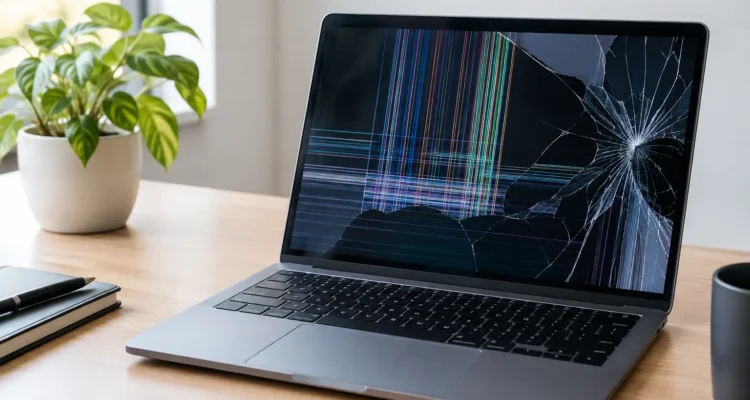
A laptop screen can fail at the worst possible time: during a remote meeting, the night before an assignment is due, or when you need an important file. The top causes of laptop screen failure are not always obvious, either. A dark display may be caused by the panel itself, but it can also point to a loose cable, liquid damage, a graphics issue, or power trouble. Knowing the difference helps you avoid paying for the wrong fix or replacing a laptop that may still be worth repairing.
Top Causes of Laptop Screen Failure
Physical impact and pressure damage
A drop is the most familiar cause of a broken laptop display, but a visible crack is not the only sign of impact damage. A screen can look intact while showing black blotches, colored lines, flickering sections, or a bright white area that spreads over time. These symptoms often mean the LCD panel underneath has been damaged.
Pressure is another common culprit. Closing a laptop with a pen, earbud case, charging cable, or small object on the keyboard can crack the display from the inside. Carrying an unprotected laptop tightly packed in a backpack can create the same problem. Modern screens are thin, which is convenient for portability but leaves little room for flexing or pressure.
If the panel is cracked or bleeding ink-like marks, a screen replacement is usually the practical repair. Pressing on the damaged area, applying tape, or continuing to force the lid open and closed can make the problem worse.
Worn or damaged display cables
Your laptop screen connects to the motherboard through a thin cable that runs through the hinge area. Every time you open or close the lid, that cable moves. After years of use, or after a hard drop or hinge damage, it can loosen, tear, or wear down.
Cable problems often create a display that works only at certain lid angles. You may see flickering, random colored lines, a screen that turns black when moved, or an image that returns after you adjust the lid. This can look like a failing screen, but the panel may be perfectly fine.
The repair depends on the device. Sometimes the cable can be reseated or replaced. On certain models, the display assembly design makes the job more involved. A proper diagnostic matters because replacing a good screen will not solve a cable issue.
Backlight failure
If you can faintly see your desktop or login screen when shining a flashlight at the display, the LCD may still be producing an image. What has failed may be the backlight system that illuminates it.
Backlight issues can be related to the screen assembly, a damaged cable, liquid exposure, or a board-level component. A laptop with no visible image can feel completely dead, yet it may still boot, make startup sounds, charge, or work normally through an external monitor. That is a useful clue, not a final diagnosis.
Because backlight circuits can involve delicate internal components, this is not a repair to guess at with random replacement parts. A technician can test whether the fault sits in the screen, cable, or motherboard before recommending the most cost-conscious option.
Liquid exposure and corrosion
Coffee, water, soda, and even a small spill can lead to screen trouble. Liquid may enter through the keyboard, vents, hinges, or edges of the display. The screen can fail immediately, but corrosion can also build gradually and cause problems days or weeks later.
Common warning signs include flickering, uneven brightness, ghosting, vertical lines, sudden shutdowns, a screen that stays black, or keys and trackpad functions failing alongside the display. Sugary drinks are especially troublesome because they leave residue that continues to attract moisture and interfere with electrical connections.
If liquid reaches your laptop, shut it down as soon as possible, unplug the charger, and do not keep restarting it to check whether it works. Avoid using heat, rice, or compressed air. Those quick fixes can push moisture deeper into the device or leave corrosion untreated. Fast professional cleaning and inspection give the laptop a better chance of recovery, especially when important files are still on it.
Hinge damage and a warped lid
A stiff, loose, cracked, or misaligned hinge is more than a cosmetic problem. It can strain the display cable, pull on the screen assembly, or put pressure on the panel whenever you open the laptop. This is particularly common after a drop or when a laptop is repeatedly opened from one corner of the lid.
Do not force a hinge that feels stuck. The extra pressure can turn a manageable hinge repair into a screen, bezel, cable, and housing repair. Open the lid from the center with both hands whenever possible, and have visible hinge damage checked before the display starts cutting in and out.
Graphics, motherboard, and software problems
Not every failed-looking laptop screen is physically broken. A graphics chip issue, damaged motherboard circuit, failed RAM, operating system error, or corrupt display driver can produce a black, distorted, frozen, or flickering screen.
An external monitor can help narrow things down. If the laptop displays normally on an external screen while its own panel does not, the issue is more likely within the internal display assembly. If both screens show artifacts, freezing, or no signal, the issue may be deeper in the laptop.
Software problems are often less expensive to solve than hardware damage, but they still deserve careful testing. Updating a driver can help in some cases. In others, repeated crashes or visual glitches signal a board-level problem that needs professional attention. The goal is to identify the actual fault rather than treat every black screen as a screen replacement.
Battery and power-related issues
A laptop that does not power on cannot light its display. A failing battery, damaged charging port, faulty charger, or power-management issue can make it seem as if the screen has failed when the laptop is not receiving stable power.
Look for clues. Does the charging light come on? Do the fans spin? Does the keyboard light up? Does the laptop work while plugged in but not on battery power? These details help separate a display problem from a power problem. Trying multiple chargers without confirming compatibility can create more confusion, so use the correct charger whenever possible.
What the Symptoms Can Tell You
A cracked display, black spots, or ink-like spreading marks strongly suggest panel damage. Lines that change when you move the lid point more toward a cable or hinge issue. A totally dark screen with a faint image may indicate backlight trouble. Flickering after a spill requires prompt liquid-damage service, while distorted images on both the internal and external display can suggest graphics or motherboard trouble.
There is overlap, and that is why a quick diagnostic is valuable. Laptop models differ widely in their construction. Some have separate, replaceable panels and cables. Others use bonded display assemblies, touch layers, or tightly integrated parts that affect repair time and cost.
What to Do Before You Bring It In
Start by protecting your files. If the laptop still works through an external monitor, back up important documents, photos, and work files right away. If you suspect liquid damage, skip the backup attempt and power it down instead.
Next, take a photo or short video of the screen behavior. Capture lines, flickering, dark areas, or the angle at which the screen cuts out. That evidence can help a technician understand an intermittent problem that may not appear the moment you arrive.
Avoid taking the display apart unless you have the proper tools and experience. Laptop bezels, cables, hinges, and screen connectors are fragile. A small mistake can damage a working panel or make data recovery more difficult. At ProPhonez, technicians can inspect the device, explain whether the screen is the real issue, and discuss quality replacement options before work begins.
When Repair Makes More Sense Than Replacement
A damaged screen does not automatically mean you need a new laptop. Repair is often a good value when the device still has a reliable processor, enough storage and memory for your needs, and no major motherboard damage. It also lets you keep your familiar files, apps, settings, and accessories without spending hours moving everything to a replacement device.
Replacement may make more sense if the laptop has multiple costly problems, cannot support the software you need, or needs a screen and major board work that exceed its practical value. The right answer depends on the model, age, condition, and repair estimate. A clear diagnostic gives you the information to decide without pressure.
Do not let a flickering or black laptop display interrupt work, school, or family life longer than it has to. Get the problem checked early, protect your data where possible, and give a repairable device a fair chance to get back to work.