A disabled Android phone can turn a normal morning into a major disruption. One too many incorrect PIN attempts, a forgotten pattern, or a screen that enters touches on its own can leave you unable to call, pay, work, or access important photos. If you need to unlock disabled Android device access, the right next step depends on what caused the lockout, whether the phone is still connected to your accounts, and how important the data is.
The goal is not to rush into a reset. A factory reset may restore use of the phone, but it can also permanently erase files that were not backed up. Start with the least destructive option, protect your accounts, and get professional help when the situation is unclear.
Why an Android device becomes disabled
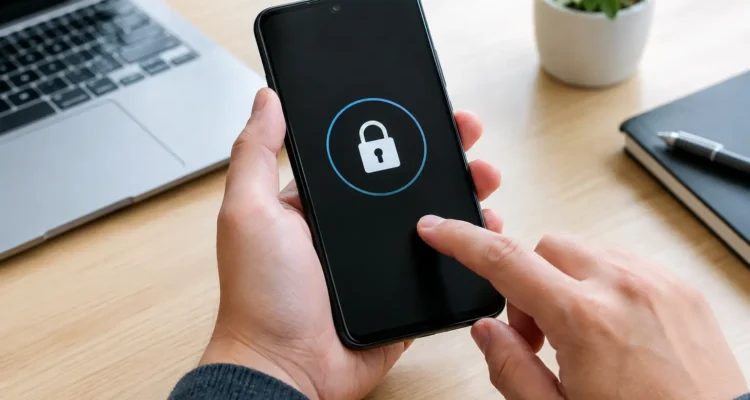
Android devices are designed to slow down repeated passcode attempts. After several incorrect entries, you may see a countdown timer. Continued failed attempts can extend that waiting period, and some security settings may erase the device after too many tries.
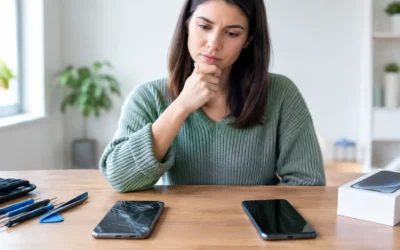
Not every disabled phone is caused by a forgotten passcode. A cracked display, moisture damage, a failing touchscreen, or a swollen battery can cause ghost touches that enter the wrong pattern or PIN without you doing anything. That is why it is worth checking the hardware before repeatedly trying codes. More attempts can make recovery harder.
A phone may also appear locked after a software update, an account issue, or a restart. On many Android devices, biometrics such as fingerprint or face recognition will not work until the primary PIN, pattern, or password is entered again. This is normal security behavior, not necessarily a phone failure.
How to regain access to a disabled Android device
Stop entering guesses and check the message
First, read the message on the screen. If it gives you a timer, wait until the timer ends before entering the code you genuinely believe is correct. Do not keep cycling through possibilities. If you use a PIN, think about combinations you routinely use for other personal accounts, but avoid guessing randomly.
If the display is cracked, flickering, or pressing buttons by itself, turn the phone off if possible. A damaged screen can continue registering incorrect touches while the device is in your pocket or sitting on a table. Screen repair may be the first step before any access attempt.
Look for the original account and backup details
Before considering an erase, confirm that you know the Google Account previously used on the device and its password. After a reset, Android’s Factory Reset Protection may require that same account before the phone can be set up again. If you cannot verify the account, a reset may leave you with a phone that still cannot be activated.
Also check whether your information is already stored elsewhere. Photos may be in Google Photos, contacts may be synced to Google, and documents could be saved in cloud storage. Log in from another device and look carefully. Knowing what is backed up makes the next decision much less stressful.
If you have changed your Google password recently, keep in mind that account-security systems can sometimes require a waiting period before a newly changed password works on a reset phone. The exact timing varies by account and device. Avoid repeated password resets unless you are sure they are necessary.
Use approved remote options when available
If the device is powered on, connected to the internet, and linked to your Google Account, Google’s device-management features may give you options to locate, secure, or erase it remotely. An erase is a last resort when you cannot remember the screen lock and no non-destructive recovery option remains.
Samsung owners may also have manufacturer account tools available, depending on the phone model, software version, and services enabled before the lockout. These tools change over time, so do not rely on old videos that promise one-click solutions. Use only official account recovery and device-management options associated with your own account.
Remote erase can be useful if the phone is lost or you need to start over, but it does not preserve local files that were never synced. It also will not remove Factory Reset Protection. You will still need the original Google Account details during setup.
Reset only when you understand the trade-off
A factory reset removes the phone’s local data, including downloaded files, app data, messages that were not backed up, and photos stored only on the device. It may return the device to working order, but it is not a passcode recovery method that keeps your data intact.
The reset steps vary by brand and model. Most involve powering off the device and using a button combination to enter recovery mode. Because the wrong steps can cause confusion or because a damaged button may prevent the process, many owners prefer an in-person diagnostic first. A technician can confirm the model, check for touchscreen damage, and explain whether there is a realistic path that protects your information.
When the problem is the phone, not the passcode
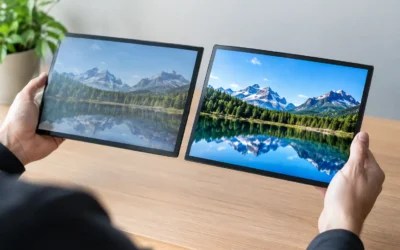
A disabled Android device with a shattered screen needs a different approach than one with a forgotten pattern. If the display cannot show the keypad clearly, replacing the screen may let you enter the correct code and access your data normally. This is often a better option than erasing a phone you actually know the code for.
Water exposure is another urgent case. Do not keep charging or restarting a wet phone. Internal corrosion can spread, and repeated power cycles may worsen the damage. A professional water-damage assessment can identify whether the display, charging port, battery, or board is contributing to the issue. If data matters, say so before repair work begins.
Software trouble can also mimic a lockout. A phone that freezes on the lock screen, reboots during startup, or will not accept touch input may need diagnostics rather than account recovery. The right repair depends on the device condition, model, and whether it can still communicate with a computer or display an image reliably.
What a repair technician can and cannot do
A trustworthy technician can diagnose whether a broken screen, battery issue, liquid damage, or software fault is preventing normal access. They can repair faulty components, assess data-recovery possibilities, and guide the lawful owner through supported reset and account-recovery steps.
They should not promise to bypass a phone’s security protections or remove Factory Reset Protection without valid account credentials. Those safeguards exist to protect owners if a device is lost or stolen. Be prepared to provide proof of ownership if account access, device status, or a warranty-related question needs to be reviewed.
At ProPhonez, the first focus is identifying what actually caused the lockout. If a failing screen is entering false taps, repairing the display may save you from an unnecessary reset. If the phone must be erased, you can get clear guidance on what that means for your files and what account information you will need afterward.
Avoid these common mistakes
Do not download questionable desktop programs or pay websites that claim they can remove any Android lock instantly. Many are outdated, misleading, or risky for your privacy. Some ask for account credentials, install unwanted software, or charge you without producing a usable result.
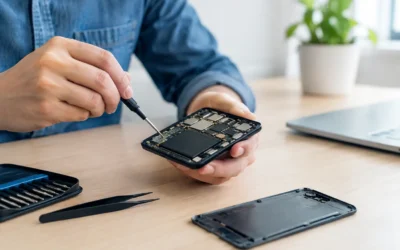
Avoid taking apart the phone yourself just to disconnect the battery or reach internal components. Modern phones contain delicate flex cables, tightly secured batteries, and water-resistant seals that are easy to damage. A simple access problem can become a screen, battery, or motherboard repair.
Finally, do not delay if the lockout followed a drop or liquid exposure. The sooner a damaged device is assessed, the better the chance of preventing additional issues. A quick diagnostic can tell you whether the safest route is screen repair, software troubleshooting, data recovery, or a reset.
Your phone holds more than apps. It holds conversations, work files, school accounts, photos, and the small details that keep your day moving. Pause the guesses, confirm your account details, and get the device checked before choosing any option that could erase what matters.