A desktop that suddenly shuts off in the middle of work, refuses to start, or makes a clicking sound can bring your whole day to a stop. Desktop computer power supply repair starts with figuring out whether the power supply is actually at fault – and whether repair is safe and worth the cost. For most home and office computers, a tested replacement is the practical answer. But the symptoms matter, because a failing power supply can look a lot like a bad motherboard, loose cable, failing drive, or overheating problem.
What a Power Supply Does and Why It Fails
The power supply unit, often called the PSU, takes electricity from the wall and delivers the right amount of power to your desktop’s motherboard, processor, graphics card, storage drives, and cooling fans. When it works properly, you rarely think about it. When it starts failing, the whole computer can become unpredictable.
Age, heat, dust buildup, electrical surges, and a power supply that is too small for the computer’s components can all cause trouble. A gaming tower with a power-hungry graphics card, for example, puts more demand on its PSU than a basic family desktop. A low-quality or worn-out unit may run for a while, then fail when the system is under load.
The key point is that power supply problems are not always dramatic. Sometimes the computer is completely dead. Other times, it turns on normally until you open a game, join a video call, edit a large file, or connect an external device.
Signs You May Need Desktop Computer Power Supply Repair
A blank screen alone does not prove that the PSU has failed, but certain patterns deserve attention. If you press the power button and nothing happens at all – no fans, lights, or sound – the outlet, power cable, power button, and power supply all need to be checked.
Unexpected shutdowns are another common sign. Your desktop may boot, run for 10 minutes, and then switch off without warning. If this happens mostly during demanding tasks, the PSU may not be providing stable power. Random restarts, repeated boot loops, flickering case lights, or fans that spin briefly and stop can point in the same direction.
You may also notice a burning smell, buzzing, crackling, or a loud new electrical noise from the rear of the tower. Turn the computer off, unplug it, and stop using it if you notice any of these warning signs. Do not keep testing a machine that smells hot or burnt. Continuing to run it can put other components at risk.
A failed PSU can also leave behind confusing symptoms. USB devices may disconnect, drives may disappear, the display may cut out, or the computer may freeze under load. Those issues can have other causes, which is why a proper diagnostic is more valuable than buying a replacement part based on a guess.
Do Not Open the Power Supply Yourself
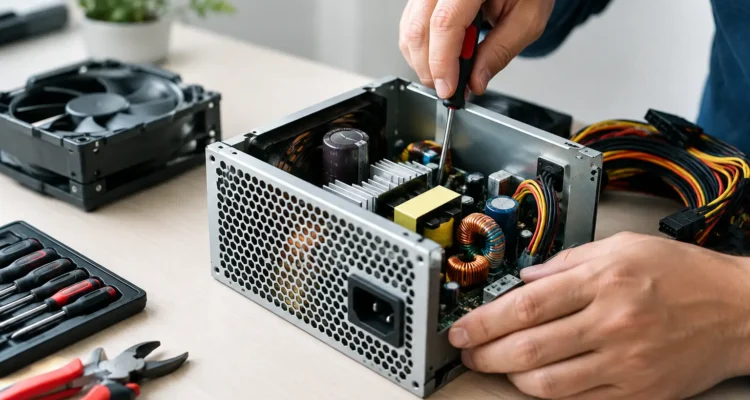
It is reasonable to remove a desktop’s side panel to check for loose cables, excessive dust, or an unplugged graphics card connector. It is not reasonable for most users to open the metal power supply housing itself.
Power supplies contain capacitors that can retain a dangerous electrical charge even after the computer is unplugged. This is not like replacing a keyboard, upgrading memory, or swapping a storage drive. Component-level PSU work requires the right training, safety procedures, and test equipment.
Avoid shortcuts such as bypassing connectors or relying on an internet “paper clip test” as a final diagnosis. A fan spinning during a basic test does not prove the power supply is stable under load. It also does not rule out a motherboard issue. If you are unsure, protect yourself and your computer by having the system checked by a qualified technician.
Repair or Replacement: Which Makes Sense?
When people ask about desktop computer power supply repair, they often mean, “Can I get my computer working again without replacing the whole thing?” In many cases, yes. The practical repair is replacing the faulty PSU, then testing the computer to make sure it powers on reliably and that no connected part was damaged.
Replacing the entire desktop is usually unnecessary when the motherboard, processor, memory, storage, and graphics card are still healthy. A suitable new PSU can be a cost-conscious fix that keeps your files, software, and familiar setup intact.
Repairing the internal electronics of the existing PSU is a different decision. It may make sense for specialized equipment, rare models, or professional bench-level work. For a typical consumer desktop, a new quality unit is often safer, faster, and easier to stand behind. The exact choice depends on the unit’s age, wattage, condition, computer value, and availability of a compatible replacement.
Do not choose a replacement based on wattage alone. The unit must have the correct motherboard connectors, CPU power connector, graphics card cables, drive connectors, physical size, and enough output for the full system. An inexpensive unit that barely meets the requirement can create more problems later. A technician can match the replacement to what your desktop actually needs rather than overselling capacity you will never use.
What a Proper Power Problem Diagnostic Looks Like
A good diagnosis starts outside the computer. The technician checks the wall outlet, surge protector or power strip, power cable, and physical condition of the tower. From there, they inspect internal cables, look for signs of overheating or liquid exposure, and verify that components are seated correctly.
Next comes testing. The PSU may be checked with dedicated equipment and, when appropriate, with a known-good compatible unit. The desktop is then tested during startup and under normal workload conditions. This matters because a power supply can appear fine at idle but fail when the graphics card and processor draw more power.
The diagnostic should also consider related issues. A failed fan can cause overheating that feels like a power problem. A damaged motherboard port can prevent startup. A failing drive may make a computer seem dead when it is actually getting power but cannot load the operating system. Clear testing helps prevent replacing the wrong part.
If your desktop still starts occasionally, back up important files before the issue gets worse. Power instability can interrupt file transfers and damage open work. If the system will not stay on long enough to back up, a repair shop may be able to assess the hardware and help protect or recover accessible data before further work begins.
Before You Bring In Your Desktop
A few details can speed up the diagnostic process. Make a note of when the problem began, whether the computer was running a game or other demanding task, and whether there was a storm, power outage, or recent move. Tell the technician about any new hardware, such as a graphics card, extra drive, or USB accessory.
Bring the desktop’s power cable if possible, especially if it is an unusual cable or you suspect it may be part of the problem. If you use a surge protector, take a quick photo of its model and any indicator lights. You do not need to disassemble the tower or attempt internal repairs before bringing it in.
At ProPhonez, the goal is to give you a straightforward answer: what failed, what your practical options are, and what it will take to get your desktop dependable again. A power-related repair should include post-repair testing, not just a quick part swap. Ask about the replacement part quality, expected turnaround, and the available 30-day repair warranty before approving the work.
Common Questions About Desktop Power Supply Problems
Can a bad power supply damage other computer parts?
It can, particularly if it fails after delivering unstable voltage or following a surge. Not every failed PSU damages other parts, but it is wise to test the system carefully before assuming a replacement alone solved everything.
Why does my computer turn on but show no picture?
The PSU is one possible cause, but not the only one. A monitor issue, loose display cable, graphics card problem, memory fault, or motherboard problem can produce the same result. Diagnosis is the fastest way to narrow it down.
How long does a power supply replacement take?
It depends on the desktop model, part availability, cable routing, and whether other damage is found. A straightforward replacement can be relatively quick, while a system with multiple failures needs more testing before it is safe to call the repair complete.
Should I keep using a desktop that randomly restarts?
Avoid relying on it for important work until it is checked. Save anything you can, shut it down when you are finished, and do not ignore heat, smoke, burning smells, or unusual electrical sounds.
Your desktop does not have to become e-waste because it will not power on. Get the cause checked early, keep your data in mind, and choose the repair that gives you a computer you can trust when you need it most.