A tablet that turns on but ignores your taps can stop a work project, derail a child’s homework, or leave you locked out of the apps you need. This tablet touch screen troubleshooting guide helps you narrow down what is causing the problem before you spend money on a repair or replacement. Some touchscreen issues take minutes to solve. Others point to a damaged display, battery, charging port, or internal connection that needs professional attention.
Start With the Simple Checks
Before assuming the screen has failed, rule out the everyday issues that can make a tablet feel unresponsive. Remove the charging cable first. Low-quality chargers, damaged cables, and poor wall adapters can create erratic touch behavior while the device is plugged in. If the screen works normally after unplugging it, test with the original charger or a certified replacement.
Next, clean the display with a soft, dry microfiber cloth. Grease, moisture, sunscreen, food residue, and even a small amount of water can interfere with touch input. Do not spray cleaner directly onto the tablet or push moisture into the speaker openings, charging port, or edges of the display.
If you use a screen protector, inspect it closely. A cracked, lifting, thick, or poorly installed protector can cause missed taps and swipes, especially near the edges. Remove it only if you have a replacement ready, then test the bare screen. Also take off a tight case that may be pressing against a damaged screen or side button.
Tablet Touch Screen Troubleshooting Guide: Restart and Update
A frozen app is not always a broken touchscreen. If only one app will not respond, close it and try another app. When touch problems show up across the whole device, restart the tablet. A standard restart clears temporary software errors that can affect touch sensitivity, display response, and app performance.
If the screen will not let you restart normally, use your tablet’s force-restart button combination. The exact buttons vary by model, so avoid repeatedly pressing random keys if you are unsure. Once it restarts, check whether the issue happens right away or only after opening a certain app.
When you can use the tablet again, install available operating system and app updates. Updates can correct bugs, improve compatibility, and fix glitches that appear after a recent installation. There is a trade-off here: do not start a major update if the tablet has a weak battery, unreliable charging, or signs of water damage. Back up important files first whenever possible.
Identify the Pattern Before You Reset Anything
The way the touchscreen fails tells you a lot. An entire screen that does not respond may be frozen, disconnected internally, or damaged. A single dead strip along the top, bottom, or side usually points more strongly to a failed digitizer layer or display assembly. Random taps, often called ghost touches, can come from a cracked screen, liquid exposure, charger interference, or failing internal components.
Pay attention to these clues:
- Touch works with a finger but not a stylus, or the reverse.
- The tablet responds only when pressed hard or at a certain angle.
- Certain letters on the keyboard never register.
- The display flickers, shows lines, dark spots, or ink-like blotches.
- The problem began after a drop, bend, spill, overheating event, or battery swelling.
A visible crack is not the only sign of damage. The glass can look mostly fine while the touch-sensitive layer underneath has failed. On many tablets, the glass, display, and digitizer are bonded together. That often means replacing the full screen assembly is the most reliable repair, even if the picture still looks normal.
Check for Storage, Heat, and App Issues
A tablet that is severely low on storage can lag so badly that touch input feels broken. Delete unneeded downloads, large videos, and unused apps if you can still navigate the device. Restart afterward and leave some free space available for the operating system to work properly.
Heat is another common culprit. A tablet left in a hot car, used heavily while charging, or running a graphics-heavy game may slow down or temporarily stop responding. Turn it off, remove the case, and let it cool naturally at room temperature. Do not place it in a refrigerator or near a fan heater. Sudden temperature changes can cause more damage.
If the problem began after installing one app, remove that app and test again. On Android tablets, Safe Mode can help identify whether a downloaded app is causing the issue. On iPads, look for recently installed apps, unusual battery drain, or repeated crashes. A software reset may help, but it should not be your first move after a drop or spill because it will not repair physical damage.
When a Factory Reset Makes Sense
A factory reset is useful when the touchscreen works inconsistently but there is no crack, liquid exposure, display distortion, or obvious hardware problem. It can remove corrupted settings or software conflicts that survived a restart and update.
The downside is significant: a reset erases personal data unless it has been backed up. Save photos, notes, school files, account details, and authenticator information first. If touch is too unreliable to back up the tablet, connecting a keyboard, mouse, or approved accessibility accessory may help on some models. If the device is locked, unavailable, or cannot complete a backup, get advice before erasing it. Data recovery options can change once a reset is performed.
Do Not Ignore Water Damage or a Swollen Battery
If your tablet was exposed to water, turn it off as soon as possible. Do not charge it, keep testing the screen, or try the rice-bag method. Rice does not remove corrosion from internal components, and charging a wet device can turn a repairable problem into a motherboard failure.
A lifting screen, separated frame, unusual warmth, or a tablet that rocks on a flat surface can indicate a swollen battery. Stop using it. A swollen battery can press upward on the display and create touch issues, but it is also a safety concern. This is not a repair to delay or handle at home.
When to Bring Your Tablet in for Repair
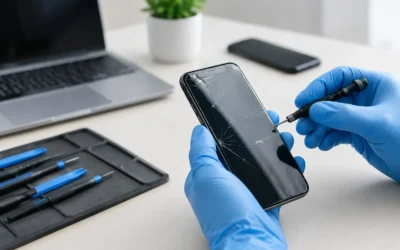
At-home troubleshooting is worth trying when the problem is clearly software-related or started without physical damage. It is time for a diagnostic when the screen has cracks, black patches, lines, ghost touches, dead zones, water exposure, or a display that separates from the frame. It is also worth getting help if the tablet charges inconsistently, restarts on its own, or only responds after being bent or pressed.
A technician can test whether the fault is in the screen assembly, battery, charging system, flex cable, or motherboard. That distinction matters. Replacing a screen will not solve a power issue, and a factory reset will not restore touch response to a damaged digitizer. At ProPhonez, technicians can inspect the device, explain the repair options, and help you choose between genuine and high-quality aftermarket parts where available. Many screen repairs can be completed the same day, depending on the model and part availability.
Before handing over the tablet, remove it from any account you can access, note the passcode if diagnostic testing requires it, and back up your data if the device still allows it. Ask about turnaround time, parts, testing, and warranty coverage so you know exactly what to expect.
Your tablet does not have to become another expensive replacement purchase because a few areas of the screen stopped responding. Start with the safe checks, protect your data, and let a proper diagnostic guide the next step when the problem points beyond a simple glitch.