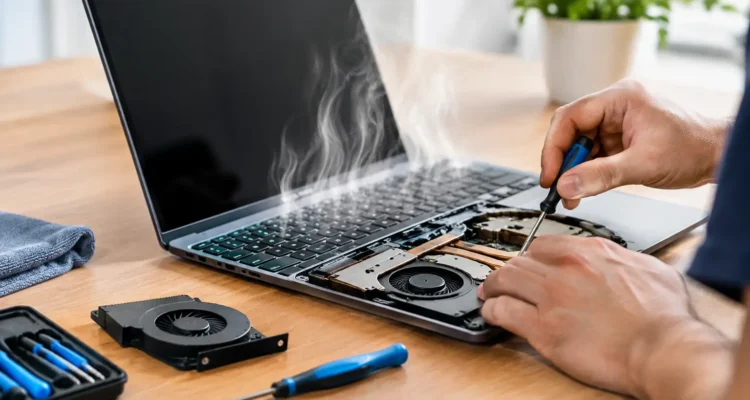
Your laptop should not sound like it is preparing for takeoff just because you opened a few browser tabs. Constant fan noise, a hot keyboard, sudden slowdowns, and random shutdowns are all signs that laptop overheating repair may be needed. The good news is that overheating does not automatically mean you need a new computer. In many cases, the issue comes down to blocked airflow, dried thermal material, a worn fan, or a battery and charging problem that can be diagnosed and repaired.
When Laptop Heat Becomes a Real Problem
Every laptop produces heat. The processor, graphics chip, battery, storage, and charging system all create warmth while you work, stream, game, or join video calls. A little heat around the vent area is normal, especially on thin laptops and performance models.
The problem starts when heat cannot escape quickly enough. Your laptop may lower its own performance to protect the internal components, making simple tasks feel frustratingly slow. If temperatures keep rising, the device can freeze, shut down without warning, damage the battery, or put extra stress on the motherboard.
Pay attention if your laptop is hot even when you are doing light tasks, if the fan stays loud for long periods, or if the bottom of the device is uncomfortable to touch. A single shutdown during a demanding game may not be an emergency. Repeated shutdowns while checking email or writing a document are a different story.
Common Causes of Laptop Overheating
A proper repair starts with finding the actual cause. Blaming the fan alone can lead to an incomplete fix, especially when the laptop has more than one heat-related issue.
Dust Blocking the Fan and Heat Sink
Dust is one of the most common causes of overheating. Over time, lint, pet hair, and debris collect inside the vents, fan blades, and heat sink fins. The fan may still spin, but it cannot push enough air through the system.
This often happens gradually. You may not notice the temperature increasing until the laptop becomes noisy, slow, or unreliable. Using a laptop on bedding, couches, carpets, or your lap can make buildup happen faster because the intake vents are easily blocked.
Failing Fans or Damaged Cooling Parts
A fan can fail completely, spin too slowly, make a grinding sound, or run inconsistently. Some laptops use multiple fans, so one failed fan can affect the entire cooling system even if the other one is still working.
Loose fan cables, broken blades, damaged heat pipes, and bent vents can also reduce cooling. A technician should inspect the whole cooling path rather than replacing one part based on a guess.
Dried Thermal Paste
Thermal paste is a material placed between the processor and the heat sink. It helps transfer heat away from the chip. After years of daily use, the material can dry out or lose effectiveness, allowing the processor to run hotter than it should.
Replacing thermal paste is not a basic wipe-and-go task. The laptop needs to be opened carefully, the old material must be removed correctly, and the heat sink needs to be reinstalled with proper contact. Too much paste, too little paste, or poor placement can create more problems.
Heavy Software Activity
Not every overheating problem is physical. A browser with dozens of tabs, background updates, cloud syncing, malware, failing drivers, or demanding games can keep the processor working at full speed. This makes the fan work harder and raises internal temperatures.
Software-related heat can sometimes be improved by closing demanding programs, updating the operating system, checking startup apps, or removing suspicious software. But if the laptop still overheats while idle, it likely needs a hardware inspection too.
Battery and Charging Issues
A swollen, degraded, or damaged battery can create heat and become a safety concern. A faulty charging port, incorrect charger, or charging circuit issue may also cause unusual warmth near the battery or power connection.
If the laptop case is separating, the trackpad is lifting, or the bottom panel looks bowed, stop using and charging the device. Do not press the case back into place. Those signs can point to battery swelling, which requires professional handling.
Safe Checks You Can Try Before a Repair
Before bringing your laptop in, place it on a hard, flat surface and make sure its vents have room to breathe. A desk or table is much better than a blanket or cushion. Shut down the laptop, unplug the charger, and let it cool fully before checking the exterior vents for visible dust.
You can also review which apps are using the most system resources. On Windows, check Task Manager. On a MacBook, use Activity Monitor. Closing one runaway app may reduce heat right away, but it is not a substitute for repair if the laptop continues to overheat during normal use.
Avoid blasting compressed air deeply into the laptop without knowing its internal layout. It can push dust farther into the heat sink, overspin a fan, or move debris where it does not belong. Do not use a household vacuum inside the device, and do not open a laptop if you are not comfortable disconnecting batteries and delicate internal cables.
Cooling pads can help in some situations, particularly for laptops with bottom intake vents. They are not a real fix for a failing fan, clogged heat sink, or old thermal paste. Think of a cooling pad as added airflow, not laptop overheating repair.
What Professional Laptop Overheating Repair Includes
A good repair process should begin with diagnostics, not assumptions. A technician can check fan behavior, vent blockage, processor load, battery condition, charging temperatures, and signs of liquid damage or motherboard trouble. This helps separate a straightforward cleaning from a more involved repair.
For many laptops, the repair may include internal cleaning, fan replacement, thermal paste replacement, and testing under normal workload. If the device has overheating related to a battery or charging issue, the technician may recommend replacing the battery, repairing the charging port, or addressing a board-level fault.
The right repair depends on your laptop’s age, value, and use. A student laptop that only needs a cleaning and fan replacement is often worth repairing. An older device with a failing battery, motherboard damage, and several broken parts may need a cost comparison before you commit. Clear diagnostics let you make that decision without guessing.
At ProPhonez, technicians can inspect overheating laptops and explain what is causing the issue before moving forward. The goal is simple: restore dependable performance without pushing you toward a replacement you may not need. Quality parts, careful testing, and warranty coverage provide added peace of mind after the repair.
Protect Your Files Before the Heat Gets Worse
Repeated overheating can cause crashes at the worst possible time. If your laptop still turns on, back up important files before the problem becomes more severe. Save work documents, school files, photos, and anything else you cannot easily replace to a secure external drive or cloud account.
Do not keep forcing a laptop to run when it repeatedly shuts down from heat. Sudden power loss can corrupt open files and, in serious cases, affect the storage drive. If the laptop contains critical data and no longer starts reliably, let a repair technician know before any major work begins. Data recovery options may be available depending on the condition of the device.
How to Keep Your Laptop Cooler After Repair
Once the underlying issue is fixed, a few habits can help extend the life of your cooling system. Keep the vents clear, use the laptop on a solid surface, and avoid leaving it in a hot car or direct sun. If you use demanding programs for editing, gaming, design work, or long video meetings, give the device occasional breaks rather than running it at maximum load for hours in a warm room.
It also helps to keep your software current and remove programs you no longer use. Updates can improve power management, while fewer unnecessary startup apps can reduce background processor activity. For older laptops, an occasional professional cleaning is a practical form of maintenance, especially in homes with pets or high dust levels.
When You Should Stop Using the Laptop Immediately
Turn the device off and arrange a diagnostic if you notice a burning smell, smoke, a swollen case, melted plastic, liquid exposure, or heat that concentrates around the battery. These are not symptoms to troubleshoot with online shortcuts. Unplug the charger and avoid attempting to charge or reopen the laptop until it has been inspected.
A laptop that runs cool is not just more comfortable to use. It is more reliable when you need it for work, school, appointments, and everything else that cannot wait. Address the heat early, protect your files, and give your device the repair it needs to keep up with your day.