A desktop that will not start can bring work, school, bills, family photos, and entertainment to a stop at once. Before you assume the whole machine is finished, desktop computer repair can often solve the actual problem for far less than the cost and hassle of buying, setting up, and transferring everything to a new PC.
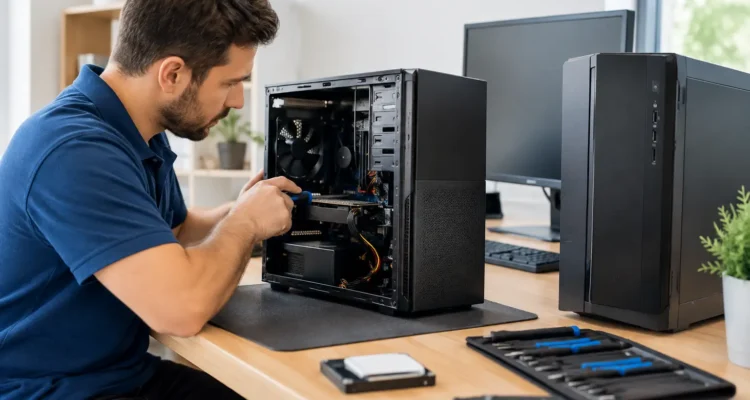
Desktop towers are built differently from most laptops. Their parts can usually be tested and replaced individually, which means one failed component does not always mean you need a new computer. The key is finding the real cause quickly and deciding whether the repair makes financial sense for how you use your PC.
When Desktop Computer Repair Makes Sense
Repair is often the smart choice when your desktop is relatively current, meets your daily needs, and has a specific fault. A failing power supply, worn-out hard drive, overheating fan, broken charging or display connection, corrupted operating system, or faulty memory module can make a computer seem completely unusable. Many of these issues are repairable without replacing the entire tower.
It also makes sense to repair when the device contains files you cannot easily replace. Tax records, business documents, family photos, saved projects, and locally stored passwords may all be on the internal drive. Even if the desktop itself is no longer worth upgrading, data recovery may still be worth pursuing before you recycle or replace it.
Age matters, but it is not the only factor. A well-built desktop that is five or six years old may get several more useful years from a new solid-state drive, additional memory, a cooling repair, or a clean operating system installation. On the other hand, an older computer with multiple hardware failures and outdated performance may cost more to restore than it is worth. A proper diagnostic gives you the information to make that call without guessing.
Common Desktop Computer Problems We See
The computer has no power
You press the power button and nothing happens, or the lights flash for a second before the machine shuts down. This can be caused by a damaged power cable, failed power supply, loose internal connection, motherboard fault, or power button issue. Because several problems can look identical from the outside, replacing random parts is usually an expensive gamble.
A technician can test the power path and isolate whether the issue is a straightforward power supply replacement or something deeper. If the motherboard is involved, you should receive a clear explanation of the repair options before moving forward.
It turns on but shows a black screen
A blank monitor does not automatically mean the desktop tower has failed. The problem may be the monitor, display cable, graphics card, memory, or the computer’s startup process. You may hear fans spinning and still see no picture, which is frustrating but useful information during diagnostics.
Testing the tower with known-good display equipment helps narrow down the fault. In many cases, reseating or replacing a component is enough to restore video output. If a dedicated graphics card has failed, the best option depends on whether you use the PC for basic work, creative software, or gaming.
The desktop is painfully slow
Slow performance is one of the most common reasons people consider replacing a computer too soon. A traditional hard drive nearing failure can make startup take forever, freeze programs, and cause constant loading screens. Replacing it with a solid-state drive can make a dramatic difference, especially on desktops that are otherwise in good condition.
Low memory, too many startup programs, malware, storage problems, or an aging operating system can also cause slowdowns. A repair should focus on the cause, not just a temporary cleanup. If the machine needs both major hardware upgrades and extensive labor, compare that cost with a replacement PC that fits your needs.
It overheats, freezes, or shuts down
Dust buildup, failing fans, dried thermal material, and blocked airflow can cause a desktop to run hot. You might notice loud fan noise, sudden shutdowns, blue-screen errors, or poor performance during video calls, games, and demanding work. Ignoring heat problems can turn a minor cooling repair into damage to more expensive components.
Internal cleaning and cooling service can help, but the technician should also check why the computer is overheating. A fan may be failing, a heat sink may be loose, or a power supply may be creating unstable conditions. The goal is a stable computer, not just a quieter one for a day.
The drive is clicking or files have disappeared
Clicking, grinding, repeated error messages, missing files, and a desktop that cannot find its operating system can point to drive failure. If your files matter, stop using the computer as much as possible. Repeated restarts, software installations, and do-it-yourself recovery attempts can overwrite recoverable data or put additional stress on a damaged drive.
Data recovery is not guaranteed, and the cost depends on the condition of the drive. Still, acting early gives you the best chance. Once your files are recovered, a new drive and fresh operating system installation can often give the desktop a clean second life.
What to Do Before Bringing in Your PC
Start with the simple checks: confirm the wall outlet works, inspect the power cable, test the monitor and cable if there is no display, and write down any error message you see. If the desktop still turns on, back up important files immediately to an external drive or secure cloud storage.
Do not open the tower unless you are comfortable working around sensitive components. Static electricity, misplaced cables, and incorrect replacement parts can create extra problems. Avoid repeatedly forcing a computer to start if you smell burning, hear unusual clicking, see liquid damage, or notice sparks. Turn it off, unplug it, and arrange a diagnostic.
Before service, make a note of your login details if possible and describe what happened just before the issue began. Did the machine lose power during an update? Was it dropped during a move? Did it become slow over weeks, or fail suddenly? Those details help speed up troubleshooting.
A Practical Repair Process
A good repair experience starts with a clear diagnosis. The technician checks the symptoms, tests the likely components, and explains what has failed and what it will take to fix it. You should know whether the repair is urgent, whether your data is at risk, and whether a replacement is the more sensible investment.
Next comes the repair itself, whether that means replacing a drive, power supply, fan, memory module, graphics card, or damaged internal connection. Software issues may require malware removal, operating system repair, data backup, or a fresh installation. Parts and turnaround time vary by the problem, but simple fixes should not be treated like a weeks-long mystery.
Finally, the desktop should be tested before it goes back to you. That includes startup behavior, display output, storage health, temperature, ports, internet connection, and basic performance. At ProPhonez, the goal is to get you back to a computer you can depend on, with a clear explanation of the work and warranty coverage for the repair.
Repair or Replacement? Use This Simple Test
Choose repair when the desktop has one identifiable issue, still performs well enough for your needs, and the estimate is comfortably below the price of a suitable replacement. This is especially true when you need the files, programs, or setup already on your machine.
Consider replacement when the computer has several major failures, cannot run the software you need, or would require costly upgrades across multiple parts. A desktop used for modern design work, advanced gaming, video editing, or demanding business applications may have outgrown its original hardware even if it can be repaired.
There is a middle ground, too. You may repair the machine long enough to recover data, keep working, and shop for a replacement without pressure. That can be far better than making a rushed purchase after a sudden breakdown.
A broken desktop does not have to derail your week. Bring in the tower, explain the symptoms, and get a real answer before you spend money on a replacement you may not need.