A locked iPhone creates a stressful question fast: how to backup locked iPhone data before it disappears? Maybe your screen is cracked and will not register taps, you forgot the passcode, or your phone now says iPhone Unavailable. Before you erase anything, stop and check what access you still have. In some cases, your photos, messages, contacts, and app data can still be backed up. In others, repairing the phone first is the safest way to protect what matters.
The key is understanding the type of lock involved. A phone with a damaged screen needs a different solution than a phone disabled after too many incorrect passcode attempts. There is no safe or legitimate way to bypass an iPhone passcode just to make a backup. But if the iPhone has already trusted a computer or has iCloud Backup enabled, you may have options.
Start by Checking Whether You Already Have a Backup
Before trying new steps, see whether a recent backup already exists. Sign in to your Apple Account from another device and check iCloud storage and backups. If iCloud Backup was enabled and your iPhone had recently been connected to Wi-Fi, charging, and locked, it may have backed up automatically overnight.
A recent iCloud backup can include device settings, app data, messages, photos if iCloud Photos is not already syncing them separately, and more. What you can restore depends on your settings and available storage. If you use iCloud Photos, your photo library may already be safely synced even if the phone itself has not completed a full iCloud backup.
You should also check other places your data may live. Contacts may sync through Google, Outlook, or another email account. Files may be stored in iCloud Drive, Google Drive, Dropbox, or a work account. This does not replace a full iPhone backup, but it can reduce the risk of losing your most important information.
How to Backup a Locked iPhone With a Trusted Computer
The best-case scenario is a phone that was previously connected to and trusted by your Mac or PC. If you had entered the passcode and tapped Trust on that computer in the past, it may still be authorized to access the device.
Connect the iPhone using a reliable cable. On a Mac running macOS Catalina or later, open Finder and select the iPhone from the sidebar. On an older Mac or a Windows PC, open iTunes. If the computer recognizes the phone without asking you to enter the passcode or trust the computer again, select Back Up Now.
Choose an encrypted local backup if possible. Encryption protects the backup with a password and can preserve additional data, including saved passwords, Health data, Wi-Fi settings, and call history. Write down that backup password somewhere secure. If you lose it, you may not be able to restore the encrypted backup later.
Let the backup finish without disconnecting the cable or restarting the computer. Large photo libraries and years of messages can take time. Keep the computer awake, make sure it has sufficient free storage, and confirm the latest backup date when the process is done.
When a Trusted Computer Will Not Work
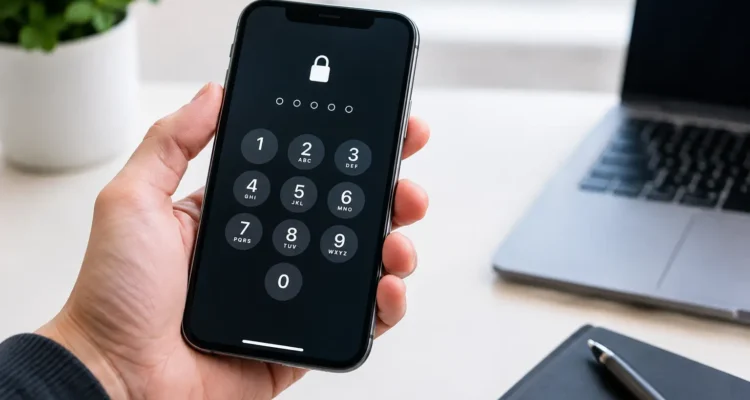
Even a computer you used before may ask for the iPhone passcode again after a restart, software update, security change, or expired trust relationship. If the iPhone displays a prompt requiring you to enter the passcode, do not keep guessing.
Too many incorrect passcode attempts can lead to longer lockout periods. Eventually, the device may display Security Lockout or iPhone Unavailable and require an erase before it can be used again. At that point, a new local backup generally cannot be created unless one already exists.
A Broken Screen Is Different From a Forgotten Passcode
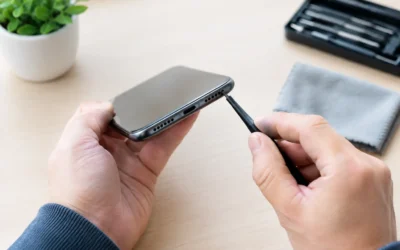
If you know the passcode but cannot enter it because the screen is black, flickering, unresponsive, or badly cracked, your first priority is often screen repair. The phone may still be fully functional behind the damaged display, including all your personal data.
A proper screen repair can restore your ability to enter the passcode, approve a trusted computer, connect to Wi-Fi, and complete an iCloud or computer backup. This is usually much safer than attempting random adapters, third-party software, or repeated button combinations that may not solve the underlying hardware problem.
Touch issues can also happen after water exposure, a hard drop, or a failing display connector. A quick diagnostic can help determine whether the problem is limited to the screen or involves the battery, charging port, board, or other internal components. If the phone powers on but shows no image, repair may still be possible without affecting your data.
At ProPhonez, technicians can assess screen, charging, water-damage, and software-related problems before you make a decision that could put your files at risk. For many damaged-display cases, getting the phone usable long enough to back it up is the practical next move.
Can You Back Up an iPhone That Says iPhone Unavailable?
Usually, not if the phone has reached the point where it requires an erase and you do not have a current backup. Apple’s security is designed this way to protect the data on a lost or stolen device. Software that claims it can bypass the passcode and recover everything should be treated carefully. Many tools cannot do what they promise, and some can lead to unwanted charges, privacy risks, or permanent data loss.
If the device says iPhone Unavailable but you remember the passcode, wait until the displayed timer ends. Then enter the correct passcode carefully. Do not rush through multiple guesses. One more wrong attempt may extend the lockout or trigger a full security lockout.
If you do not remember the passcode and no backup exists, erasing the iPhone may be the only supported way to use it again. You will still need the Apple Account email and password associated with the device after the erase because Activation Lock remains in place.
Avoid These Common Mistakes Before You Reset
When your iPhone is locked, urgency can lead to choices that make recovery harder. Avoid restoring or updating through recovery mode unless you are certain a backup exists or you accept that the phone may need to be erased. An update can sometimes preserve data, but it is not a guaranteed backup method and may fail if the device has hardware damage.
Do not factory reset the phone simply because a screen is broken. If you know the passcode, a repair may give you access to everything again. Also avoid repeatedly trying passcodes, especially if you are unsure. The difference between a short lockout and a permanently unavailable device can be just a few incorrect attempts.
Be cautious with low-cost data recovery claims. Modern iPhones encrypt their data, and the passcode plays a central role in protecting it. A reputable technician will explain what is possible, what is not, and whether repair first gives you a better chance of making a legitimate backup.
What to Do After Your Backup Is Complete
Once you have confirmed a successful iCloud or computer backup, you have more room to make decisions. You can repair the screen, replace a failing battery, address charging trouble, or erase and restore the phone if the passcode cannot be recovered. A backup does not make the situation convenient, but it turns a potential data-loss emergency into a fixable device problem.
For the future, enable iCloud Backup, keep enough iCloud storage available, and connect your iPhone to a trusted computer periodically if you prefer local backups. A backup is most useful when it happens before the cracked screen, spill, or lockout ruins your day.
If your phone is locked because of a damaged display, water exposure, or a hardware fault, do not assume your data is gone. Get the device checked before resetting it. The right repair can be the step that gives you access to your memories, work files, and conversations when you need them most.