A phone speaker that suddenly sounds muffled, quiet, crackly, or completely silent can derail your day fast. Before assuming the phone needs replacing, learn how to fix phone speaker problems by checking the common causes first: blocked speaker grills, a setting change, Bluetooth routing, moisture, or a worn speaker component.
The right fix depends on what you hear and when the issue started. A little dust in the bottom speaker grill is very different from distorted sound after a drop or water exposure. Start with the safe checks below, then know when it is time to bring the phone in for a professional diagnosis.
First, identify which phone speaker has a problem
Most smartphones have more than one audio component. The bottom speaker handles music, videos, speakerphone calls, alarms, and ringtones. The small earpiece at the top of the screen handles regular phone calls when the phone is held to your ear. Some phones also use both speakers together for stereo sound.
Play a song or video, then make a test call. If media sounds normal but calls are hard to hear with the phone against your ear, the earpiece may be blocked or failing. If calls are clear but music and ringtones are quiet, focus on the bottom speaker. If nobody can hear you during a call, that is usually a microphone problem, not a speaker issue.
This quick distinction prevents you from cleaning or replacing the wrong part.
How to fix phone speaker sound with simple checks
Start with the least invasive fixes. They take only a few minutes and can solve many everyday sound problems.
Check volume, sound modes, and audio settings
Turn the volume up while a song or video is actively playing. Phones keep separate volume controls for media, calls, alarms, and ringtones, so raising the ringtone volume will not always raise video audio.
Next, make sure the phone is not on silent mode, Do Not Disturb, or an accessibility setting that changes audio balance. On some phones, an audio balance slider can send most sound to one side. Reset it to the center if necessary.
Restart the phone after checking these settings. A restart can clear a temporary software glitch that is preventing audio from routing correctly.
Disconnect Bluetooth and wired accessories
Your phone may be working perfectly but sending sound somewhere else. If it was recently connected to wireless earbuds, a vehicle, a smartwatch, or a Bluetooth speaker, disconnect Bluetooth temporarily and test the built-in speaker again.
Also remove any wired headphones, adapters, or charging accessories. A damaged charging port or an adapter issue can occasionally confuse a phone into thinking headphones are connected. If a headphone icon stays on the screen after everything is unplugged, the port may need cleaning or professional attention.
Remove the case and screen protector
A bulky, shifted, or poorly fitted case can partly cover the bottom speaker grill or top earpiece. Take the case off and test the sound again. If sound immediately improves, the phone itself may be fine.
Screen protectors can cause a similar problem around the top earpiece, especially if they are misaligned or collecting dust at the edge. Do not poke anything into the earpiece opening. Remove the protector only if it is clearly blocking the grill or has lifted over it.
Clean the speaker grill carefully
Pocket lint, makeup, skin oils, and dust can pack into a speaker grill over time. The sound may become dull rather than fully silent. Cleaning can help, but this is where many DIY attempts create damage.
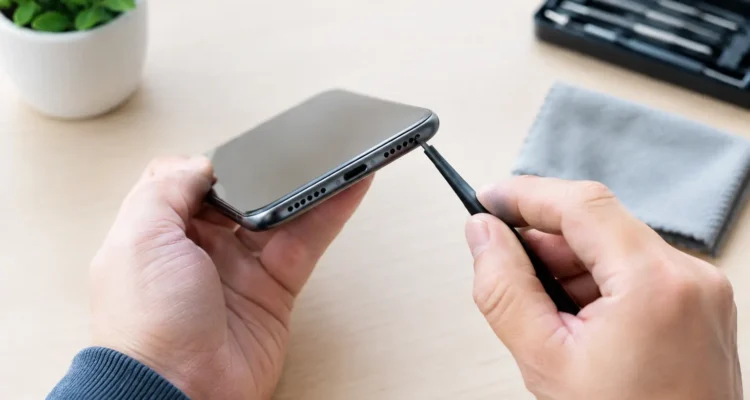
Turn off the phone and use a clean, dry, soft-bristle brush to gently sweep across the speaker openings. A new, dry toothbrush with very soft bristles can work if you use almost no pressure. Hold the phone with the grill facing downward so loosened debris falls out rather than farther inside.
Avoid liquids, cleaning sprays, compressed air, metal pins, toothpicks, and adhesive putty. Liquids can enter the device, compressed air can force debris deeper, and sharp objects can tear the protective mesh or damage the speaker itself. If the grill looks packed but will not clear easily, a repair technician can clean it safely during an inspection.
If the speaker got wet, act quickly but do not force a fix
Water exposure can make audio sound crackly, low, distorted, or silent. Even phones with water-resistance ratings are not waterproof forever. A drop in a sink, rain exposure, humidity, or a spilled drink can still affect the speaker, charging port, or internal connections.
Remove the case, power the phone off if possible, and gently dry the outside with a lint-free cloth. Keep the speaker facing down in a dry, ventilated area. Do not plug it in until you are confident the charging port is dry.
Do not use a hair dryer, oven, direct heat, or rice. Heat can damage adhesives and internal components, while rice does not remove moisture from inside the phone. Sound may improve after surface moisture evaporates, but crackling that continues beyond a short drying period can point to corrosion or speaker damage. Water damage is time-sensitive, so a professional cleaning and inspection is the safer move.
Look for clues that the speaker itself is damaged
A failing phone speaker often gives clear signs. Sound may crackle at higher volumes, cut in and out when the phone is moved, stay very quiet after cleaning, or disappear after a hard drop. If the sound is distorted across every app and after a restart, it is less likely to be a simple settings problem.
Physical damage can also affect the speaker connection inside the phone. This is especially common when a device has a cracked screen, bent frame, damaged back housing, or previous water exposure. Replacing only the speaker may solve the problem, but a proper diagnosis matters because the issue could involve the charging assembly, earpiece flex cable, motherboard, or corrosion on a connector.
When a software issue is the likely cause
If audio stopped after an app update, operating system update, or new app installation, test sound in several places: a video app, the phone’s ringtone preview, a voice memo, and a phone call. If one app has no sound while everything else works, check that app’s permissions and audio settings, then update or reinstall it.
If no app produces sound, back up the phone and install any available system update. You can also reset settings if your phone offers that option. A settings reset usually preserves photos and files, but it may remove saved Wi-Fi networks, Bluetooth pairings, and custom preferences. Read the reset screen carefully before confirming.
A full factory reset should be a last software step, not the first response to a muffled speaker. It will not fix a damaged speaker, and it creates unnecessary setup work if the real problem is hardware.
When to bring your phone in for speaker repair
Bring the device in if sound remains weak after the basic checks, the speaker crackles after water exposure, the phone was dropped, or the issue returns repeatedly. You should also get help when the earpiece is silent during calls, Bluetooth will not disconnect correctly, or the phone shows headphone mode with nothing connected.
A technician can test the speaker, earpiece, microphone, charging port, and related connections instead of guessing. That matters because replacing the wrong part costs more and leaves you with the same problem. At ProPhonez, technicians can inspect the device, explain whether cleaning, a speaker replacement, or water-damage treatment makes sense, and test the repair before you leave.
Your phone does not need to stay unreliable because its sound changed. Start with careful cleaning and settings checks, but if the issue follows a drop, spill, or persistent distortion, getting an accurate diagnosis is the fastest way back to clear calls, alarms, music, and speakerphone conversations.