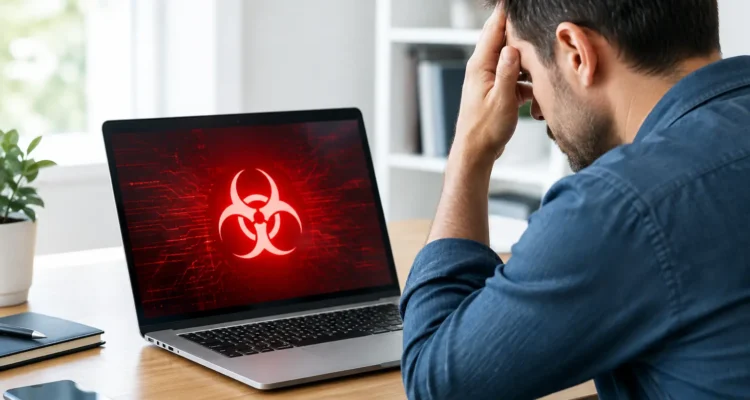
A laptop that suddenly crawls, floods you with pop-ups, or opens browser tabs on its own is more than annoying. It may put your photos, saved passwords, schoolwork, work files, and financial accounts at risk. Computer virus removal is about stopping that risk quickly, without making a stressful situation worse or accidentally deleting the files you need.
The good news is that many infected computers can be cleaned up and brought back to reliable use. The right approach depends on what is happening, how serious the infection is, and whether your data has already been affected. Start calmly, avoid clicking anything suspicious, and focus on protecting your information first.
Signs Your Computer May Have a Virus
Not every slow computer has malware. An aging laptop with a full storage drive, too many startup apps, a weak battery, or a failing hard drive can also feel painfully slow. But certain changes deserve attention, especially if they begin suddenly.
Watch for constant pop-ups, browser redirects, unfamiliar toolbars, antivirus warnings you do not recognize, or programs opening without your permission. You may also see strange purchases, password reset emails, messages sent from your accounts, or files that are missing, renamed, or unable to open.
A computer that runs hot and loud while you are doing almost nothing may also be working in the background for someone else. Some malware uses your processor for unwanted tasks, while other threats quietly collect passwords or monitor what you type. If the issue appeared after downloading a file, opening an unexpected email attachment, installing a free program, or clicking a sketchy ad, treat it as a possible infection.
What to Do Before Computer Virus Removal
Your first move should be to disconnect the device from the internet. Turn off Wi-Fi, unplug the Ethernet cable, and disconnect external drives if possible. This can limit a threat’s ability to send data, download more harmful files, or spread to shared storage and other devices on your network.
Do not log in to your bank, email, shopping, or social accounts from the affected computer. If you believe passwords may have been exposed, use a separate trusted device to change your most important passwords. Start with your email account because it is often used to reset access to everything else. Enable two-factor authentication where available.
Avoid random pop-up numbers or websites promising instant virus removal. Scareware is designed to make you panic. It may claim your device has hundreds of infections, then pressure you to call, pay, or install more unwanted software. A real warning should not force you to act within seconds or demand payment to let you close your browser.
If you have important files, resist the urge to copy everything to a USB drive right away. Moving files before the system is checked can carry infected files to another device. A technician can help determine whether a careful backup is appropriate and which files are safest to preserve.
Safe Steps You Can Try at Home
If your computer is still usable, restart it and run the security software already installed on the machine. Make sure its virus definitions are updated first, then run a full scan rather than a quick scan. Follow the recommended action for anything it identifies, which may include quarantining or removing the file.
Next, check recently installed apps and browser extensions. Remove anything you do not recognize, especially programs installed around the time the problems began. Look at your browser’s default search engine and homepage too. If they changed without your permission, reset those settings and remove unfamiliar extensions.
You can also review which programs launch when the computer starts. Too many startup items slow a machine down, and suspicious entries can be a warning sign. Be careful here: do not delete system files or disable items simply because their names look unfamiliar. A legitimate driver or system process may have a technical name.
Keep expectations realistic. A scan may remove a straightforward adware infection, but it cannot always repair damage caused by malware. If files were encrypted, accounts were compromised, or the computer remains unstable after a cleanup attempt, more thorough service may be needed.
When Professional Virus Removal Makes Sense
Bring the computer in when you cannot log in, the machine keeps crashing, your browser is locked by a warning screen, or the infection returns after you remove it. Professional help is also a smart choice when the device contains irreplaceable family photos, tax records, business files, or school projects.
A proper diagnostic looks beyond the first visible symptom. The goal is to identify unwanted software, remove malicious files, check startup behavior, review system performance, and test whether the computer is stable afterward. In some cases, the cleanest and safest solution is to back up recoverable personal data and reinstall the operating system. That takes more time than a basic scan, but it may be the better option when an infection is deeply embedded.
There are trade-offs. A repair shop cannot always guarantee recovery of files damaged by ransomware or a failing storage drive. Some malware cleanup also requires software updates, password changes, and follow-up monitoring at home. Still, early service can often prevent a minor infection from turning into a data-loss problem or an account-security mess.
At ProPhonez, technicians can diagnose software-related issues on laptops and desktop computers, explain what is affecting the device, and help you choose a cost-conscious next step. If your computer needs more than a quick cleanup, you should know that before investing time and money into a repair.
Protect Your Accounts After a Cleanup
Removing malware from the computer is only one part of the job. If you entered passwords while the device was infected, change them from a clean device. Use different passwords for important accounts instead of recycling one password everywhere. A password manager can make that easier without forcing you to memorize dozens of complicated logins.
Review your email forwarding settings, recovery email addresses, and active login sessions. Attackers sometimes set up rules that quietly forward messages or leave themselves access after a password reset. Check bank and credit card activity as well, and contact the provider quickly if something does not look right.
For the next few weeks, pay attention to unexpected sign-in alerts, password reset messages, and unfamiliar activity in your accounts. This does not mean you should panic. It simply gives you time to catch a problem early if the infection had access to your information.
Keep the Same Problem From Coming Back
The best protection is usually a few consistent habits, not complicated technical knowledge. Install operating system updates and browser updates when they become available. Updates often fix security weaknesses that malware uses to get in.
Download software only from sources you trust, and slow down when an email, text, or pop-up creates urgency. A message that says your account will be closed today, your package cannot be delivered, or your computer is infected may be trying to rush you into clicking before you think. Check the sender, inspect the wording, and go directly to the official website or app instead of using a suspicious link.
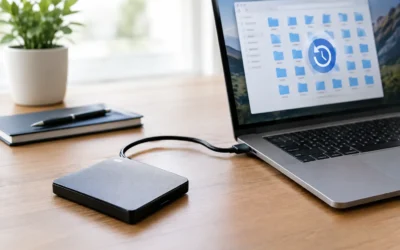
Keep one backup of important files separate from your computer. Cloud storage can help, but a separate backup drive used carefully adds another layer of protection. If ransomware ever locks your files, a current backup can make the difference between a frustrating repair and a major loss.
A strange pop-up does not always mean disaster, but waiting for the problem to disappear can give malware more time to cause damage. Disconnect the computer, protect your accounts, and get a clear diagnosis if the issue persists. The sooner you deal with it, the sooner you can get back to work, school, streaming, and everything else your computer needs to handle.