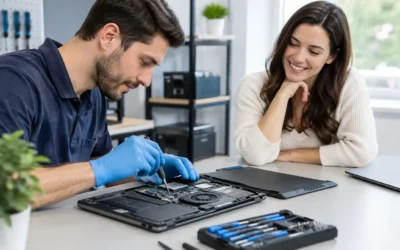
Your laptop says 45% battery, then shuts down before your next meeting. Or it only works while plugged in, even though the charging icon appears. These are frustrating problems, but they do not always mean you need a new laptop. Knowing how to diagnose laptop battery trouble helps you separate a worn battery from a charger, charging port, software setting, or deeper hardware issue.
A few simple checks can point you in the right direction without taking unnecessary risks. The goal is not to open the laptop or guess at a fix. It is to notice the pattern, protect your data, and know when a battery replacement is the cost-effective repair.
Start With the Symptoms You Can See
Battery problems usually leave clues. A laptop with normal battery wear may still turn on and charge, but its runtime gets noticeably shorter. A more urgent issue can cause sudden shutdowns, overheating, an unreliable charge, or a bulge in the case.
Pay attention to when the problem happens. If your laptop dies only when it is unplugged, the battery may no longer hold enough usable charge. If it loses power while the battery still shows 20% or 30%, the battery gauge may be inaccurate or the cells may be failing. If it never charges above a certain percentage, the cause could be battery health, a charging limit set by the manufacturer, or a weak power adapter.
A laptop that runs normally on battery but will not charge is a different situation. That can point to the charger, cable, charging port, or charging circuit rather than the battery itself. The distinction matters because replacing a battery will not repair a damaged port or a failing motherboard component.
Check the Charger, Cable, and Power Source First
Before blaming the battery, rule out the easy external causes. Plug the charger directly into a known-working wall outlet, not a loose power strip or extension cord. Check whether the charging light turns on, if your model has one, and make sure the connector sits firmly in the laptop.
Look over the cable and adapter brick for fraying, exposed wires, scorch marks, bent connectors, or unusual heat. A damaged charger is not something to tape up and keep using. It can create inconsistent charging, damage the port, or become a safety concern.
If you have access to a compatible manufacturer-approved charger with the correct wattage, test it briefly. USB-C laptops are especially prone to confusion here. A phone charger may fit the port but may not supply enough power to charge the laptop under normal use. Some laptops will display a message saying the adapter is underpowered, while others will simply charge very slowly or lose battery percentage while plugged in.
Also inspect the charging port. If the plug wiggles, only charges at a certain angle, or disconnects when the laptop moves slightly, the port may be worn or loose. Do not force the connector or keep bending it into position. That can turn a repairable port problem into a larger board-level repair.
How to Diagnose Laptop Battery Health in Software
Your operating system can provide useful battery information without installing random third-party tools. These reports are not perfect, but they are a strong starting point.
On a Windows laptop
Windows can generate a battery report that compares the battery’s original design capacity with its current full-charge capacity. Open Command Prompt as an administrator, type `powercfg /batteryreport`, and press Enter. Windows saves an HTML report to the location shown on screen.
Open the report and look for “Design Capacity” and “Full Charge Capacity.” A lower full-charge number is expected as a battery ages. For example, a battery designed for 50,000 mWh that now reaches 30,000 mWh has lost a significant amount of its original capacity. That does not automatically mean it is unsafe, but it explains shorter unplugged runtime.
The report also shows recent usage and battery-life estimates. If the estimates are wildly inconsistent or the laptop shuts down well before the reported percentage reaches zero, the battery may be unable to deliver stable power under load.
On a MacBook
Select the Apple menu, choose System Settings, then open General and About. From there, view the system report and locate Power. Depending on the macOS version, you may also see battery condition in Battery settings.
MacBooks commonly report a condition such as Normal, Service Recommended, or a similar warning. Check the cycle count as well. A cycle is the equivalent of using 100% of the battery’s capacity, even if it happens across several partial charges. A high cycle count combined with a Service Recommended message, short runtime, or unexpected shutdowns is a clear reason to have the battery tested.
Software reports are helpful, but they cannot always identify a charging-port fault, liquid damage, or failing power-management circuit. If the report looks normal but the laptop still has charging problems, a hands-on diagnostic is the next step.
Test the Battery Behavior, Not Just the Percentage
A percentage reading alone does not tell the whole story. Charge the laptop fully, then use it normally with a browser, document, video call, or other everyday task. Note how fast the percentage drops and whether the laptop becomes unusually warm.
Next, try a controlled restart. Shut the laptop down, leave it connected to power for a while, then turn it on and see whether the reported battery level changes dramatically. A sudden jump from 60% to 15%, or from 10% back to 40%, suggests the battery reading is not reliable.
You can also test whether the laptop maintains power under a modest workload. If it shuts off as soon as you open several browser tabs or join a video call, but works fine while connected to the charger, the battery may not be able to provide enough voltage when demand increases.
Do not repeatedly drain a weak battery to 0% in an attempt to “train” it. Modern lithium-ion batteries do not benefit from frequent deep discharge, and a failing battery may become less stable. One normal-use test is enough to identify the pattern.
Watch for Signs That Need Immediate Attention
Some battery issues should not wait for a convenient repair day. Stop using the laptop and arrange a professional inspection if you notice physical swelling, a lifted trackpad, a separating bottom cover, a warped keyboard, smoke, a chemical smell, or excessive heat while charging.
A swollen battery can put pressure on the trackpad, display, and internal components. Do not puncture it, press the case back into place, or attempt to remove it with household tools. Keep the laptop on a hard, nonflammable surface, disconnect the charger if it is safe to do so, and avoid carrying it in a backpack.
Water exposure is another reason to avoid assumptions. A laptop may work after a spill yet develop charging or battery issues later due to corrosion. In that case, the battery is only one part of the diagnosis. The charging circuit and internal connectors should be checked before installing a replacement.
When a Battery Replacement Makes Sense
Replacement is usually the practical choice when the battery has clearly lost capacity, the laptop dies unexpectedly off the charger, the operating system reports battery service is needed, or the battery is swollen. For a laptop that otherwise performs well, a new battery can add useful years without the expense and setup time of buying a replacement computer.
It depends on the laptop’s overall condition, though. If the device also has major overheating, storage, display, or motherboard problems, it is worth getting a clear repair estimate first. You should know whether a battery repair is the complete answer or one piece of a larger issue.
Quality matters with replacement batteries. Genuine parts can be a good fit when available, while high-quality aftermarket options may offer a more budget-friendly path for some models. The right choice depends on availability, warranty coverage, and how you use the laptop every day.
A technician can test charging input, battery health, port stability, and internal power delivery in one visit. At ProPhonez, that means finding the actual cause before recommending a repair, so you are not paying for a battery when the real issue is the charger, port, or internal hardware.
Your laptop should not be chained to an outlet or shut down when you need it most. Back up important files, stop using it if you see swelling or severe heat, and get a proper diagnostic while the repair is still straightforward.