Your phone is plugged in, the cable feels loose, and charging only starts after you wiggle it into exactly the right position. Before you assume the battery or charger has failed, check the port. Knowing how to clean charging port debris safely can restore a reliable connection and save you from replacing accessories that are still working perfectly.
Pocket lint, dust, fabric fibers, and fine debris collect at the bottom of charging ports over time. Because the connector needs to sit fully inside the port, even a compact layer of lint can stop it from making contact. The good news is that basic cleaning is usually simple. The key is being gentle and knowing when the problem is bigger than dirt.
Signs Your Charging Port May Be Dirty
A dirty port does not always look dirty from the outside. Debris often gets pressed into the bottom of the port every time you plug in a cable. If your charging cable no longer clicks firmly into place, falls out easily, or sits at an odd angle, lint buildup is a likely cause.
You may also notice intermittent charging, a charging alert that appears and disappears, slow charging with a cable that works normally on another device, or a phone that only charges when left untouched. Test a second known-good cable and power adapter first. If the issue follows your phone rather than the accessory, inspect the port.
Do not confuse a dirty port with a damaged one. A bent connector, corrosion after water exposure, or a failed charging assembly can create nearly identical symptoms. Cleaning helps when debris is blocking the connection. It will not repair worn pins or liquid damage.
How to Clean Charging Port Safely
Start by powering your device off completely. Removing power lowers the chance of a short circuit if there is hidden moisture or if a tool touches an internal contact. Take off a case if it makes the charging cable difficult to insert, then work under bright light.
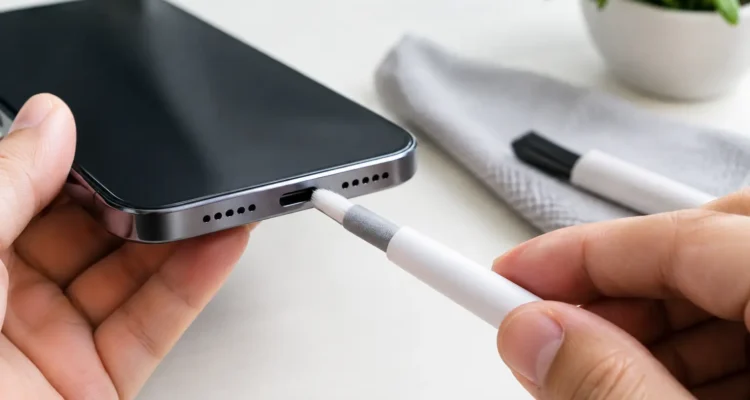
For most phones, tablets, and laptops, you only need a dry, non-metal cleaning tool and a little patience. A wooden toothpick, a plastic dental pick, or a soft anti-static brush is usually enough. Use the tip carefully, without forcing it toward the back or sides of the port.
Avoid using a paper clip, safety pin, knife, needle, or other metal object. Charging-port contacts are delicate, and metal tools can bend pins, scrape protective coatings, or create an electrical issue if the device is accidentally powered on. Cotton swabs are also often too large and can leave fibers behind.
1. Look inside before you touch anything
Use a flashlight or the light from another phone to inspect the port. You may see a gray or black layer of lint packed against the bottom. On USB-C and Lightning ports, look for debris around the center connector and the lower edge. On Micro-USB ports, pay close attention to the small internal tongue, which can be damaged by aggressive cleaning.
If you see green, white, or rusty-looking residue, stop. That can indicate corrosion from moisture, and scraping it may make the damage worse. A technician should inspect a corroded port before you attempt further cleaning.
2. Loosen lint with a plastic or wooden pick
Hold the phone so the port faces downward. This gives debris a chance to fall out instead of being pushed deeper inside. Gently trace the inside edges of the port with a dry wooden or plastic pick. Use short, light movements, and do not jab at the center connector.
The goal is to lift lint out in small pieces. It may take several passes, especially if the material has been compressed at the bottom. If the tool catches, do not force it. Pull it out, change your angle, and try again with less pressure.
3. Brush away loose debris
After loosening the buildup, use a clean, dry, soft brush to sweep away anything near the opening. A small anti-static electronics brush is ideal, but a very soft, clean brush can work if it does not shed bristles. Keep the port facing down as you brush.
Compressed air can help in some cases, but it comes with trade-offs. Strong bursts can push debris farther into the device, and canned air can release moisture or propellant if tilted. If you use it at all, use brief, controlled bursts from a distance while keeping the device upright or port-down. Never insert an air nozzle into the port.
4. Test the fit before turning the device back on
Once the port looks clear, reconnect the cable gently. It should insert more fully and feel more secure than before. Do not force the plug. A cable that still will not seat properly may be meeting remaining debris, a bent pin, or a damaged port.
Turn the device back on and let it charge for a few minutes. Check whether the charging symbol remains steady and whether the cable stays connected with normal movement. If it does, you have likely solved the problem.
What Not to Put in a Charging Port
Liquid cleaners can create more trouble than they solve. Do not pour water, rubbing alcohol, contact cleaner, or household cleaning spray into a charging port. Even isopropyl alcohol, which is used in some electronics repairs, should only be handled carefully and sparingly by someone who understands the device and can confirm the port is not damaged.
You should also avoid using heat to dry or clean a port. Hair dryers can push moisture deeper inside and expose sensitive components to unnecessary heat. If your phone warns that moisture has been detected, unplug it and allow it to air-dry in a dry, ventilated place. Do not charge it until the warning disappears.
When Cleaning Does Not Fix the Problem
If a clean port still charges inconsistently, the issue may be the cable, adapter, battery, software, charging board, or the port itself. Try a different certified cable and adapter, then test a wall outlet rather than a computer USB port. Restarting the device can also rule out a temporary software issue.
A professional inspection is the better next step if the connector feels loose inside the phone, charging stops when the cable moves slightly, the device gets unusually warm near the port, or there has been a drop or water exposure. Do not keep forcing a cable into a damaged port. A small repair can become a more involved board-level issue if internal contacts break.
At ProPhonez, a technician can inspect the port, test your charging accessories, and determine whether a careful cleaning, charging-port repair, or another fix is the most cost-effective option. That means you can get a clear answer without guessing whether it is time to replace your device.
Charging Port Care for Different Devices
USB-C ports are common on newer Android phones, iPads, laptops, and many accessories. Their center tongue is thin, so never pry against it. Lightning ports found on many iPhones can collect a dense layer of pocket lint at the bottom, making the cable seem too short. Micro-USB ports are more prone to damage because of their asymmetrical shape, so use especially light pressure around the internal connector.
Wireless charging can be a temporary workaround for a phone with a questionable wired port, but it does not fix the underlying issue. It may also charge more slowly and generate more heat. If you depend on wired charging, data transfer, or wired accessories, it is worth having a damaged port checked rather than working around it.
Frequently Asked Questions
Can I clean my charging port with a toothpick?
Yes, a dry wooden toothpick can be a safe choice when used gently. Keep the phone powered off, work with the port facing down, and avoid pressing hard against the internal contacts. A plastic pick is another good option.
Why does my phone charge only when the cable is bent?
Lint may be preventing the cable from reaching the contacts, but a loose port or worn cable can cause the same behavior. Test another cable first. If multiple cables require a certain angle, have the phone inspected.
How often should I clean a charging port?
There is no fixed schedule. Clean it when the cable stops fitting securely or charging becomes unreliable. Keeping your phone out of lint-heavy pockets and using a clean cable helps reduce buildup.
A charging problem can feel urgent when your phone is your connection to work, school, family, and everything else. Start with a careful inspection and gentle cleaning, but trust the warning signs. If the port still will not hold a charge, getting it checked early can protect your device and get your day moving again.