A device that shows its logo, shuts off, and starts again can make a normal morning feel impossible. You cannot answer a call, access a work file, or pull up a transit pass when your phone or laptop never reaches the home screen. So, what causes bootloop problems? Usually, the device is failing one of the checks it needs to complete during startup – and the cause can range from a bad update to a failing battery or motherboard component.
A bootloop does not automatically mean your device is beyond repair. The best next step depends on what happened just before the looping began, whether the device was dropped or exposed to liquid, and whether your data is backed up. Here is how to narrow down the cause without making a recoverable issue worse.
What Causes a Bootloop?
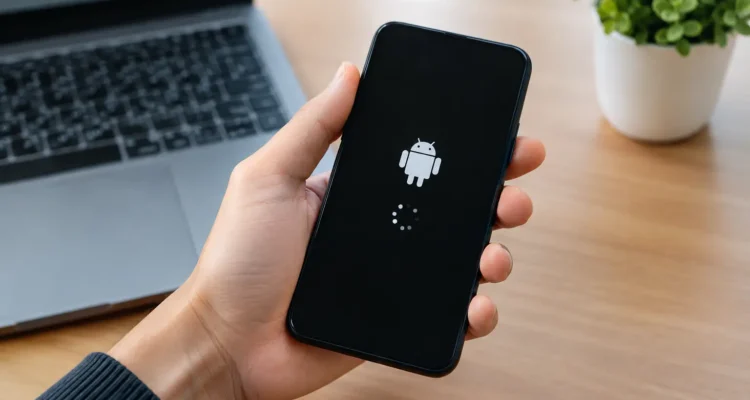
A bootloop is a repeated startup cycle. Your phone, tablet, smartwatch, laptop, or desktop begins to turn on, but it restarts before loading fully. You may see an Apple, Samsung, Google, Windows, or manufacturer logo over and over. In some cases, the screen stays black between restarts. In others, the device reaches a loading bar, lock screen, or recovery screen before cycling again.
Startup is a chain of events. The device needs stable power, working storage, a healthy operating system, and functioning internal components. If one part of that chain fails, the system may restart to protect itself or because it cannot move forward. That is why the same symptom can have a simple software fix in one device and require board-level repair in another.
A failed update or corrupted system files
Software trouble is one of the most common bootloop triggers. An operating system update can fail if the battery dies, the device runs out of storage, the internet connection drops at the wrong moment, or a system file becomes corrupted. This can happen on iPhones, Android phones, MacBooks, Windows laptops, tablets, and smartwatches.
A loop that begins immediately after an update is more likely to be software-related, though that is not guaranteed. A repair technician can often determine whether the operating system can be reinstalled or repaired while preserving data. Resetting the device yourself may solve the loop, but it can also erase photos, messages, school files, and work documents if no backup exists.
Problem apps, unofficial modifications, or storage issues
A recently installed app, an incomplete app update, or a device modification can interfere with normal startup. On Android devices, custom firmware, rooting tools, and incompatible system-level apps can cause this problem. On computers, a faulty driver, security tool, or startup program may be the culprit.
Storage can also be part of the issue. When a phone or computer is completely full, it may not have room to create the temporary files needed for an update or a normal startup. A device that has been warning you about low storage and then begins looping deserves a careful diagnosis before any reset attempt.
Battery and charging failures
Your device may look like it is booting, but a weak battery can prevent it from staying powered long enough to finish. Batteries naturally lose capacity with age. They can also become unstable after overheating, physical damage, poor-quality charging accessories, or liquid exposure.
This is especially common when a phone starts normally only while plugged in, restarts when you open an app, or loops once the charging cable is removed. A damaged charging port, charging circuit, or cable can create similar symptoms by delivering inconsistent power. Replacing a worn battery is often far more affordable than replacing the device, but the battery should be tested rather than guessed at.
Drop damage and loose internal connections
A hard drop can do more than crack a screen. It can damage a battery connector, charging assembly, display connection, storage chip, or a tiny component on the motherboard. The device may appear fine at first and begin looping later, especially after it is moved, charged, or exposed to heat.
A loose connection is sometimes repairable without replacing the entire device. More serious impact damage may require motherboard work. The key is not to keep forcing restarts if the device gets hot, flickers, smells unusual, or shows lines on the screen. Those signs point beyond a basic software glitch.
Water damage and corrosion
Liquid does not always cause an immediate shutdown. Moisture can stay inside a phone, tablet, laptop, or smartwatch and slowly corrode connectors or board components. Days later, the device may begin restarting, lose its ability to charge, or get stuck at the logo.
If your device was splashed, dropped in water, or used in heavy humidity before the bootloop started, stop charging it and do not use a hair dryer. Heat can push moisture deeper into the device and worsen the damage. Rice is not a repair method either. Proper liquid-damage service involves opening the device, inspecting affected areas, cleaning corrosion, and testing the parts that control power and startup.
Motherboard, memory, or storage failure
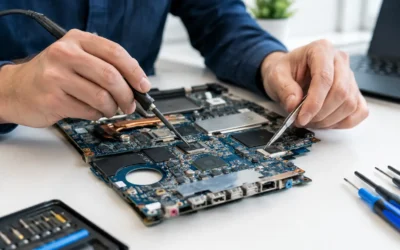
The more difficult cases involve the hardware responsible for processing, storing, and delivering power. A damaged motherboard, failing storage chip, or defective memory can stop a device during startup. These issues are more likely if the bootloop happens after liquid damage, repeated overheating, a severe drop, or months of random restarts and freezing.
This is also where data recovery becomes more important. Replacing a motherboard can restore a device in some cases, but your original data is generally tied to the old board. Before agreeing to a reset, replacement, or board swap, ask whether data recovery is possible and what the repair path means for your files.
Safe First Steps When Your Device Keeps Restarting
Start with the basics, but avoid turning a small problem into a larger one. Remove the case if the device feels hot and disconnect any accessories, including chargers, docks, headphones, external drives, and keyboards. Let it cool for 15 to 30 minutes, then try charging it with a known-good cable and power adapter.
If your phone or computer has a manufacturer-approved forced restart method, you can try it once. This does not normally erase data. If the device starts, back it up immediately before installing another update, deleting files, or troubleshooting apps.
Do not repeatedly force restart a device that is overheating, recently got wet, has a swollen battery, or was badly damaged in a drop. Do not attempt to open it with household tools unless you understand the risk. Modern devices contain delicate cables, adhesive seals, and lithium-ion batteries that can be damaged easily.
When a Bootloop Needs Professional Repair
A technician can separate a software loop from a power, battery, charging, or motherboard issue through on-the-spot diagnostics. That matters because the right repair can be quick, while the wrong DIY fix can lead to data loss or unnecessary replacement parts.
Bring the device in sooner if it loops after water exposure, feels unusually warm, will not charge consistently, shows a cracked or lifting screen, or has been dropped. Also seek help if a reset is the only option your device suggests and you have important files that are not backed up. A repair team can explain the trade-off between restoring the system, replacing the battery, repairing internal damage, and attempting data recovery first.
At ProPhonez, technicians can inspect phones, tablets, laptops, MacBooks, smartwatches, and desktop devices to identify what is stopping startup. You get a clear repair recommendation before moving ahead, along with options that fit the condition and value of your device.
A bootloop is frustrating, but it is also a useful clue. Pay attention to the timing – after an update, a drop, water exposure, or a long period of battery trouble – and get the device checked before repeated restarts turn a repairable problem into lost data.