A tablet that taps, scrolls, types, or opens apps on its own can make a simple task feel impossible. If you need to fix tablet ghost touches, start by treating the issue as more than an annoying glitch. Random touches can come from something as simple as a dirty screen protector, but they can also point to a failing display, moisture damage, charging interference, or a damaged touch sensor.
The good news is that you do not have to guess forever. A few safe checks can help you narrow down the cause. If the problem keeps happening, a professional diagnostic can confirm whether your tablet needs a screen repair, internal cleaning, or a software fix.
What Tablet Ghost Touches Usually Mean
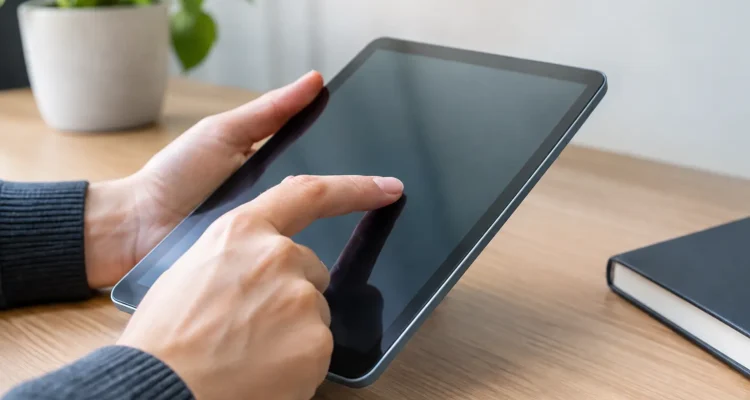
Ghost touches happen when your tablet registers touch input that you did not make. You might see the screen swiping between pages, keyboard keys pressing themselves, apps launching, or the device refusing to follow your actual finger.
Your tablet screen has a digitizer – the touch-sensitive layer that tells the device where you are pressing. When that layer is damaged or disrupted, it can send incorrect signals. A cracked screen, a hard drop, a bent frame, water exposure, or a low-quality replacement screen can all interfere with the digitizer.
Not every case means the screen needs replacement. Software bugs, heat, charging accessories, and debris can create similar symptoms. That is why it makes sense to rule out the easy fixes first, especially if your tablet is still usable.
How to Fix Tablet Ghost Touches at Home
Clean the screen and remove accessories
Start by powering off the tablet and wiping the screen with a clean, dry microfiber cloth. Grease, moisture, food residue, and dust around the edges can confuse a sensitive touchscreen. Avoid spraying liquid directly onto the display, and do not use harsh household cleaners that can damage the screen coating.
Next, remove the screen protector and case temporarily. A cracked, bubbling, poorly fitted, or thick screen protector can cause phantom input, especially near the edges. Some cases also press against a damaged screen or frame. Test the tablet without both accessories before buying replacement parts.
Disconnect the charger
If ghost touches happen mainly while charging, unplug the tablet and test it on battery power. A worn cable, damaged charging block, poor-quality adapter, or unstable outlet can cause electrical interference that affects the touchscreen.
Try a known-good manufacturer-approved or high-quality charger and cable. If the ghost touching stops with a different charger, your screen may be fine. Replace the charging accessory rather than risking further damage to the battery or charging port.
Restart, update, and check for one bad app
A restart clears temporary errors and is worth trying before anything more involved. After restarting, make sure the tablet has enough free storage and install any available system updates. Touch-related bugs are sometimes corrected through software updates.
If the issue began after downloading an app, remove that app and test again. On many Android tablets, Safe Mode can help you determine whether a third-party app is involved. If the screen behaves normally in Safe Mode, an app is likely causing the problem. On an iPad, review recently installed apps and remove any that appeared around the same time as the issue.
Be careful with a full factory reset. It may help with a persistent software problem, but it erases your data unless you have a current backup. If your screen is tapping by itself so aggressively that you cannot back up files safely, get the device inspected before resetting it.
Let an overheated tablet cool down
Tablets can become erratic when they are hot, particularly during gaming, video calls, navigation, or charging. Remove the case, stop charging, place the tablet on a cool flat surface, and let it return to room temperature. Do not put it in a refrigerator or near a fan that could push dust or moisture into ports.
If ghost touches only appear after the tablet gets hot, there may be a battery, display, or internal connection issue that needs attention. Repeated overheating is not a normal problem to ignore.
Signs Your Screen Needs Professional Repair
Home troubleshooting has limits. If the tablet was dropped, has a cracked display, or began ghost-touching after water exposure, screen damage is a strong possibility. Even a small crack can affect the layers beneath the glass and gradually spread into a bigger touch problem.
You should also arrange a diagnostic if the ghost touches are concentrated in one area of the display, get worse when you press near a crack, appear after a previous screen repair, or continue after you remove the charger and accessories. These patterns commonly point to a failing digitizer, loose display connection, damaged frame, or replacement part issue.
Water damage deserves fast attention. Moisture can cause ghost touches immediately, but it can also corrode connectors over time. Do not keep charging a tablet that got wet, and do not try the rice trick. Turn it off if possible and have it assessed. A proper water-damage service involves opening the device, checking for corrosion, cleaning affected areas, and testing the tablet before replacing parts.
Why a Screen Repair Can Be the Better Value
When the digitizer is built into the display assembly, the practical repair is often a full screen replacement. That may sound like a major job, but it is usually far more cost-effective than replacing an otherwise capable tablet. It also saves you from transferring apps, accounts, school files, photos, and settings to a new device.
The right repair depends on the tablet model and the damage found during testing. Some tablets use display assemblies that include the glass, LCD or OLED panel, and touch layer together. Others may have a separate issue with an internal connector or the charging system. A technician should confirm the source of the problem before recommending a part.
At ProPhonez, technicians can inspect the screen response, charging behavior, frame condition, and signs of liquid exposure before moving forward. You can discuss genuine and high-quality aftermarket part options based on availability, budget, and how you use the device. After repair, the tablet should be tested across the full display, not just at the center of the screen.
Avoid Making Ghost Touches Worse
Do not press hard on the display to “reset” it, pry up a lifting screen, or keep using a charger that causes the problem. Those temporary workarounds can turn a touch issue into a damaged display, charging port, or battery concern.
If your tablet is still partly responsive, back up important files as soon as possible. Save photos, notes, schoolwork, work documents, and app data before the issue becomes severe enough to block access. If the screen is too unstable to do that safely, a repair shop can advise you on options before any reset or part replacement.
A tablet should respond to your touch, not fight it. Start with the simple checks, protect your data, and get a diagnostic when the problem points to physical damage. A timely repair can get your device back to being useful for work, school, streaming, and everything else you rely on it for.