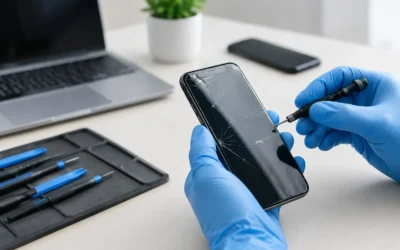
A laptop rarely fails without giving you a few chances to act first. The best laptop repair warning signs are usually the everyday annoyances you keep working around: a charger that only works at one angle, a fan that suddenly sounds like a vacuum, or a battery that drops from 40% to zero. Catching the problem early can protect your files, avoid a bigger repair bill, and keep your work, classes, and home life moving.
Best Laptop Repair Warning Signs You Should Not Ignore
Some laptop issues are inconvenient but harmless. Others can damage internal components or put your data at risk if you wait. The difference often comes down to whether the problem is occasional, getting worse, or affecting more than one part of the machine.
Your laptop overheats or shuts down unexpectedly
A warm laptop after a long video call or gaming session is normal. A laptop that becomes painfully hot during basic browsing, however, needs attention. You may notice the fan running constantly, the keyboard getting hot near the hinge, performance slowing down, or the computer shutting off without warning.
Heat can build up because of blocked vents, packed dust, dried thermal paste, a failing fan, or a deeper motherboard issue. Continuing to use an overheating laptop can strain the battery, processor, and storage drive. Place it on a hard, flat surface and make sure the vents are clear, but do not rely on a cooling pad to hide a worsening problem. If the heat keeps returning, a technician can inspect and clean the internal cooling system before a small maintenance job turns into component damage.
The battery drains quickly, will not charge, or looks swollen
Battery trouble is one of the clearest reasons to schedule a repair. If your laptop only lasts an hour off the charger, dies at a percentage that should be safe, or refuses to charge past a certain point, the battery may be worn out. That does not automatically mean the laptop itself is finished. Battery replacement is often far more practical than buying a new computer.
A swollen battery is more urgent. You might see the bottom cover lifting, the trackpad becoming hard to click, or a gap forming around the case. Stop using and charging the laptop if you suspect swelling. Do not press the case back into place or attempt to puncture the battery. A swollen lithium battery needs professional removal to prevent further damage.
The charger works only in a certain position
If you have to bend, hold, or wiggle the charging cable to keep power flowing, do not brush it off as a bad habit of the cord. The cable may be damaged, but the charging port may also be loose, dirty, or separating from the board. On USB-C laptops, a worn port can also cause slow charging, intermittent power, or problems connecting accessories.
Trying multiple cables can help narrow down the cause, as long as they meet your laptop’s correct power requirements. If known-good chargers produce the same issue, it is time for a diagnostic. Using a loose connection every day can make the port damage worse and may eventually leave you unable to charge at all.
Your screen flickers, shows lines, or goes black
A single brief flicker can be a software hiccup. Repeated flickering, colored lines, dark patches, ghost images, or a screen that cuts out when you move the lid points to a hardware concern. The problem could be the LCD panel, a loose display cable, the hinge area, graphics hardware, or liquid damage.
Try connecting an external monitor if you have one available. If the external display looks normal while the laptop screen does not, the screen assembly or cable is more likely to blame. If both displays show the same distortion, the issue may be more complex. Either way, back up your files while you still can. Screen faults sometimes progress quickly, especially after a drop.
The laptop is slow in a way that feels new
Older laptops do slow down over time, particularly when storage is nearly full or too many apps open at startup. But a sharp change in performance deserves a closer look. Warning signs include long boot times, frequent freezing, apps crashing, the spinning cursor appearing during simple tasks, or files taking forever to open.
Software cleanup may solve the issue, so a repair is not always the first answer. Updates, malware, low storage, and too many background programs can all drag down performance. However, clicking noises from a traditional hard drive, repeated error messages, random restarts, and missing files can indicate a failing drive. That is when data recovery and drive replacement become much more time-sensitive.
Strange Sounds and Smells Need Fast Action
Your laptop should not make grinding, buzzing, crackling, or repeated clicking noises. A fan may be obstructed or failing, while clicking can come from an older mechanical hard drive. Speakers can crackle because of an audio setting, but persistent crackling after a spill or drop may involve internal damage.
Burning smells, smoke, sparks, or unusual heat near the charging port are reasons to power the laptop down immediately. Unplug it from power if it is safe to do so. Do not keep testing it to see whether the smell returns. Electrical issues can worsen quickly, and early assessment may prevent damage from spreading across the board.
After a Spill, Time Matters More Than You Think
Water damage does not always cause an immediate shutdown. A laptop may seem fine after coffee, water, or another liquid reaches the keyboard, then develop sticky keys, charging issues, screen problems, or corrosion days later. That delay gives many people false confidence.
Turn the laptop off, disconnect the charger and accessories, and avoid charging it. Do not use a hair dryer, put it in rice, or repeatedly power it on to check whether it survived. Rice does not remove residue or corrosion, and heat can push liquid deeper into the device. A proper liquid-damage assessment involves opening the computer, inspecting affected areas, and treating corrosion before it reaches more components.
Keyboard, Trackpad, and Port Problems Can Be More Than Annoying
A few keys that stick after crumbs get under them may only need cleaning. Keys that type the wrong characters, stop responding, or trigger multiple letters can signal keyboard damage, especially after moisture exposure. A trackpad that jumps, stops clicking, or feels raised could also be warning you about a swollen battery underneath.
Pay attention to USB, HDMI, headphone, and SD card ports too. When several accessories disconnect randomly or only work after repeated attempts, the issue may be more than the accessory itself. A technician can determine whether the problem is a worn port, driver issue, cable damage, or a board-level fault. That distinction matters because replacing parts unnecessarily costs more and may not fix the real cause.
When You Should Back Up Before Booking a Repair
Back up your data whenever your laptop begins restarting, freezing, displaying drive errors, or behaving unpredictably after liquid exposure. If you can still access your files, save important documents, photos, schoolwork, and business folders to secure cloud storage or an external drive. Do not delay a backup because the device briefly starts working again.
If the laptop will not boot or the drive is failing, avoid repeatedly forcing it to start. Each attempt can add stress to damaged storage. Data recovery may still be possible, but the best outcome depends on the type of drive, the severity of the fault, and whether the data has been overwritten or physically damaged.
What to Expect From a Laptop Repair Diagnosis
A good diagnostic should identify the cause before anyone recommends a repair. That is particularly valuable when the same symptom could come from several sources. For example, a laptop that will not power on could have a failed charger, bad battery, damaged charging port, screen issue, or motherboard problem.
At ProPhonez, technicians can assess laptops and MacBooks with the goal of finding the most cost-conscious path back to a usable device. Sometimes that means a battery, screen, port, or software repair. Other times, an honest recommendation may be to recover the data first if the repair cost does not make sense for the laptop’s age and condition. Ask about part options, expected turnaround, testing, and warranty coverage before approving work.
A glitchy laptop does not have to derail your week. When the fan gets louder, the battery gets weaker, or the screen starts acting up, treat it as your cue to act while repair is still the simpler, more affordable option.