A cracked screen is frustrating. A phone that will not turn on when your photos, messages, banking apps, work files, and contacts are inside is a much bigger problem. Knowing how to protect phone data before an accident gives you options when a drop, spill, failed battery, or software issue interrupts your day.
The good news is that data protection does not require a technical background or a complicated routine. A few settings, a sensible backup plan, and quick action after damage can make the difference between a repairable inconvenience and a permanent loss.
How to Protect Phone Data With a Real Backup Plan
Your phone should back up automatically, not only when you remember. Cloud backup is usually the easiest first layer because it can save your contacts, photos, app data, settings, and messages while your phone is charging and connected to Wi-Fi.
On an iPhone, check that iCloud Backup is turned on and confirm that the most recent backup is current. On Android, check your Google backup settings and make sure photos are syncing to Google Photos or the service you prefer. The exact items included can vary by phone, app, storage plan, and settings, so take a minute to review what is actually being saved.
Cloud storage is convenient, but it should not be your only copy for files you cannot replace. Family photos, tax documents, school projects, client files, and voice recordings deserve a second backup. Transfer them to a computer or encrypted external drive on a regular schedule. If your cloud account is locked, full, or unavailable at the wrong moment, that second copy can save a lot of stress.
Do not assume a photo is protected just because you can see it on your phone. Open your backup service occasionally and check that recent photos and files appear there. A backup that stopped syncing months ago is not much help after a phone failure.
Secure the Phone Before It Gets Lost
A lost phone is not just an expensive device to replace. It can give someone access to your email, password reset codes, payment apps, private conversations, and stored documents. Your lock screen is the first barrier, so use a strong passcode instead of an easy pattern, birthday, or four-digit number someone close to you could guess.
Biometric unlock with Face ID, fingerprint recognition, or another supported option makes a stronger passcode less annoying to use. Turn on automatic locking as well. Leaving a phone unlocked on a desk, in a car, or at a coffee shop creates an avoidable opening.
You should also enable the built-in device-finding feature on your phone. Apple devices use Find My, while many Android devices offer a Google location and remote-management option. These tools can help you locate a missing device, display a contact message, lock it remotely, or erase it if recovery is no longer realistic.
For your most sensitive apps, use an additional app lock or biometric requirement where available. Start with email, banking, payment services, password managers, cloud storage, and health-related apps. It adds a small step when you open them, but it can prevent a stranger from quickly changing passwords or moving money.
Protect the Accounts Connected to Your Phone
Your phone is often the key to the rest of your digital life. If someone accesses your primary email account, they may be able to reset passwords for dozens of other services. Use a unique, long password for email and every important account, then store those passwords in a reputable password manager rather than reusing the same one.
Turn on two-factor authentication for email, financial apps, social media, and cloud storage. An authenticator app or security key is generally safer than receiving codes by text message, though text verification is still better than no second step at all.
Be alert for phishing messages that claim your phone, carrier account, delivery, or bank needs immediate attention. A convincing-looking text can send you to a fake sign-in page designed to collect your password. Instead of using a link from an unexpected message, open the official app or type the company website into your browser yourself.
It is also worth setting a PIN or password with your mobile carrier. This can make it harder for someone to transfer your number to another SIM card and intercept security codes meant for you.
Reduce the Risk of Physical Damage
Data protection starts before the phone turns on. A quality case and screen protector are simple, affordable defenses against the drops that crack displays and damage internal parts. They cannot stop every accident, but they can reduce the chance that a fall becomes a data-recovery situation.
Keep your phone away from water whenever possible, even if the model is advertised as water-resistant. Water resistance can weaken after drops, aging seals, previous repairs, or normal wear. A phone that survived a quick splash last year may not survive one today.
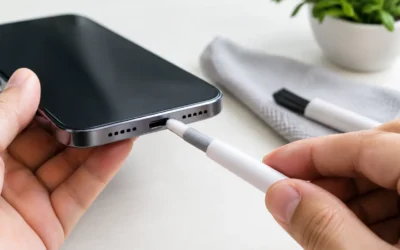
Heat is another quiet problem. Do not leave your phone in a hot car, under a pillow while charging, or in direct sun for long periods. Excessive heat can shorten battery life and may contribute to performance issues or unexpected shutdowns. Use reliable charging cables and adapters, and stop using accessories that become unusually hot, frayed, or loose.
If your screen is cracked, your charging port is unreliable, or your battery is swelling or draining fast, do not wait until the phone completely fails. Early repair can protect your access to the device and may make it easier to create a fresh backup first.
What to Do Right After a Drop or Water Exposure
After a hard drop, test the basics while the phone is still working. Check the display, touch response, cameras, speakers, microphone, charging, Wi-Fi, and cellular signal. Then run a backup as soon as possible. A phone can appear fine at first and develop display, battery, or motherboard symptoms later.
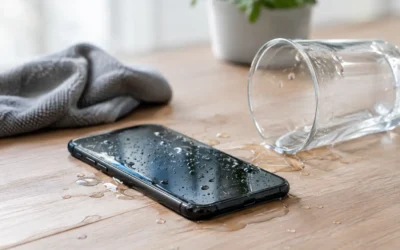
Water exposure needs a different response. Remove the phone from the water, turn it off if possible, and do not charge it. Do not put it in rice. Rice does not remove corrosion from inside the device, and charging a wet phone can worsen the damage.
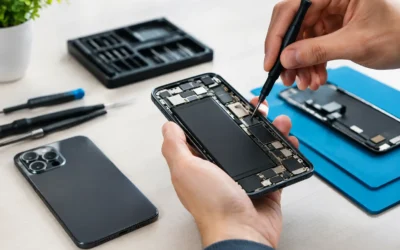
Bring it in for professional water-damage assessment as soon as you can. Fast internal cleaning and testing may improve the chance of saving the phone and its data. If the device still turns on, tell the technician that data preservation is your priority before any repair work begins.
Prepare Your Phone for a Repair Visit
A reputable repair shop should respect your privacy, but you still control what access is needed. If your phone works, create a current backup before your visit. Remove sensitive files you do not need stored locally, log out of financial apps if practical, and disable notification previews on the lock screen.
You may need to provide a passcode for certain repairs because technicians must test the screen, cameras, speakers, cellular features, and other functions after service. Ask why access is required, and change your passcode after the repair if you shared it. If your phone supports a repair mode or maintenance mode, turn it on before handing it over.
Before dropping off any device, write down the model, serial number or IMEI, visible damage, and current symptoms. Take photos of the phone’s condition. This gives you a clear record and helps the technician focus on the right issue quickly.
At ProPhonez, customers can ask about data concerns before service begins, especially for water-damaged devices, phones that will not power on, and repairs involving software or storage issues. Clear communication early helps the repair team recommend the safest next step for the device.
A Five-Minute Phone Data Checkup
Set a monthly reminder to do a quick checkup. Confirm that your latest backup completed, review available cloud storage, install trusted system updates, and make sure your device-finding service is active. Check your recovery email address and phone number on important accounts too.
Use this time to remove apps you no longer use and review app permissions. A flashlight app probably does not need access to your contacts, microphone, location, and photo library. Fewer unnecessary permissions mean fewer places for personal information to be exposed.
Finally, pay attention to warning signs. Repeated freezing, random restarts, a screen that flickers, a phone that only charges at a certain angle, or a rapidly declining battery can signal trouble before a complete failure. Back up first, then get it checked while the phone is still accessible.
Your phone holds the pieces of life you cannot easily replace. Give those files a safe place to go before an accident forces the issue, and get a failing device looked at before a small problem takes your data with it.