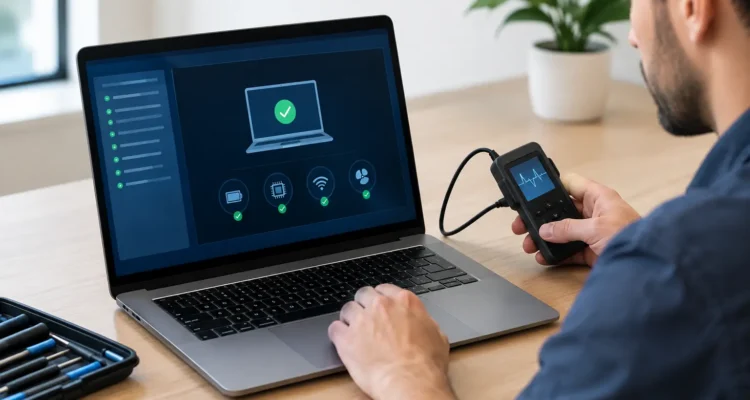
A laptop that takes ten minutes to start, dies at 40% battery, or shuts off in the middle of a meeting does not always need to be replaced. Proper laptop diagnostics find out what is actually failing before you spend money on a repair – or on a new machine you may not need.
The symptoms can be frustratingly similar. A failing battery, damaged charging port, overheating fan, corrupted software update, loose screen cable, or failing storage drive can all make a laptop feel unreliable. Guessing at the cause can mean paying for the wrong fix. A thorough diagnostic check gives you a clearer answer, a realistic repair option, and a better idea of whether repair is worth it.
What Laptop Diagnostics Actually Check
A laptop is not one single part. It is a group of connected systems that need to work together: the battery and charging circuit, display, keyboard, cooling system, storage, memory, operating system, and motherboard. When one area starts to fail, the effect can show up somewhere else.
For example, a laptop that will not turn on may have a dead battery, but it could also have a worn-out charger, a damaged DC jack, liquid damage, or an internal board issue. A black screen does not automatically mean the display needs replacement. The laptop may be running normally while the screen cable, backlight, graphics system, or external display connection is the real problem.
A technician starts by listening to what happened before the issue began. Did the laptop fall? Did a drink spill near the keyboard? Did the problem begin after an update? Does it happen only while charging or only after the computer has been running for an hour? Those details help narrow the diagnosis quickly.
Then, the device is tested for power behavior, charging response, battery condition, screen output, ports, keyboard and trackpad function, fan activity, temperatures, storage health, memory stability, and software errors. If the symptoms point deeper, the technician may inspect internal connections and the motherboard for corrosion, burnt components, or damage caused by impact.
Signs You Should Get Laptop Diagnostics
You do not have to wait until your computer is completely dead. Early testing can prevent a small issue from turning into lost work, missed classes, or an expensive data recovery situation.
Bring your laptop in if it suddenly runs much slower than usual, gets unusually hot, makes grinding or loud fan noises, freezes repeatedly, or restarts without warning. Those symptoms may come from failing storage, low available memory, malware, blocked cooling vents, aging thermal material, or software conflicts. The right repair depends on the cause.
Charging problems are another reason to act early. A charger that only works at a certain angle, a battery percentage that jumps around, or a laptop that powers off as soon as it is unplugged can point to different repairs. Replacing a battery may solve the issue, but not if the charging port or charging circuit is damaged.
Screen issues also deserve a closer look. Flickering, lines, dark spots, dim backlighting, touch problems, and a display that cuts in and out when you move the lid can be caused by the panel itself or by the cable running through the hinge. A diagnostic check helps avoid replacing a screen when a smaller connection repair would do the job.
The Difference Between a Software and Hardware Problem
This is where laptop diagnostics save people the most time. Software problems can look serious: error messages, endless loading screens, failed updates, apps that crash, or a computer that will not get past the logo. In many cases, these can be addressed through system repair, malware removal, driver correction, operating system recovery, or storage cleanup.
Hardware problems tend to follow patterns. A laptop that overheats under light use may have a failing fan or blocked cooling system. A computer that blue-screens when opening files may have unstable memory or a damaged drive. A system that has no power after a spill may need corrosion treatment or board-level repair.
Sometimes it is both. An aging storage drive can corrupt system files, leaving you with a hardware issue and a software recovery job. That is why wiping the device or reinstalling the operating system should not be the first move when important files are still on it. If your photos, schoolwork, business documents, or login information matter, ask about data recovery before approving a reset.
Why a Quick Fix Is Not Always a Real Fix
It is tempting to search for one shortcut when a laptop starts acting up. Restarting the computer, updating software, or buying a new charger can be useful first steps, but they do not confirm the cause. A temporary improvement can hide a deeper issue until it becomes more disruptive.
Take overheating as an example. Closing background apps may make the laptop feel better for a day. But if the fan is clogged, failing, or unable to spin at the correct speed, the machine will continue to run hot. Over time, repeated heat stress can affect the battery, storage, and motherboard.
The same goes for water damage. A laptop may turn on after a small spill, then stop working days later as corrosion develops around connectors or board components. Do not keep charging or powering on a wet device. Turn it off, disconnect the charger, and have it inspected as soon as possible. Fast treatment gives your laptop and its data a better chance.
What Happens During a Professional Diagnostic Visit
A good diagnostic process should feel straightforward, not mysterious. You explain the issue and any recent accident or change in behavior. The technician checks the device, tests the likely failure points, and determines whether the repair is practical.
After testing, you should get a clear explanation of what is wrong, what repair is recommended, and what the expected cost looks like before work moves forward. If there are options, such as a genuine part versus a high-quality aftermarket part, you should understand the trade-off in price and availability.
Repair timing depends on the model and the issue. Common concerns such as battery replacement, keyboard work, storage upgrades, fan repairs, or screen replacement can often be handled much faster than motherboard damage or liquid-related repairs. Parts availability also matters. The goal is not to promise an unrealistic timeline, but to get you back to a dependable laptop as quickly as possible.
At ProPhonez, the focus is on finding the problem first, then giving you a repair path that fits the device and your budget. That may mean a simple part replacement, software repair, data recovery, or a more involved board-level solution.
How to Prepare Your Laptop for Diagnostics
If the laptop still turns on, back up important files before bringing it in when possible. Use a cloud account, external drive, or another computer. Backups are especially helpful when the device is freezing, displaying storage errors, or showing signs of water damage.
Bring the charger that you normally use. A charger issue can look like a battery or power issue, and testing your usual setup gives the technician more useful information. If you use a special docking station or adapter that triggers the problem, bring that too.
You do not need to spend hours trying to fix the device first. In fact, repeated force-restarts, unknown cleanup apps, and unnecessary resets can make diagnosis harder or put files at risk. Write down when the issue started, what you were doing when it happens, and any message that appears on screen. A photo of an error message is often enough.
When Repair Makes Sense and When It May Not
Laptop repair is usually a smart choice when the device is otherwise meeting your needs and the problem is limited to a battery, screen, keyboard, port, fan, storage drive, memory, or software issue. These repairs can extend the useful life of a computer without the cost and hassle of replacing it.
It depends when the laptop is very old, has major motherboard damage, or needs several expensive parts at once. In those cases, a diagnostic assessment still has value. It helps you make the replacement decision with real information, and it may allow you to recover important data before moving on.
Do not let a glitchy laptop keep interrupting work, school, or everyday tasks. Bring it in while the symptoms are still manageable, get an honest diagnosis, and make the next move with confidence.